

iPhone battery draining fast? 10 fixes that make it last longer
Start by finding out what is using the battery. Settings shows you, app by app, and the fix is usually obvious once you know.
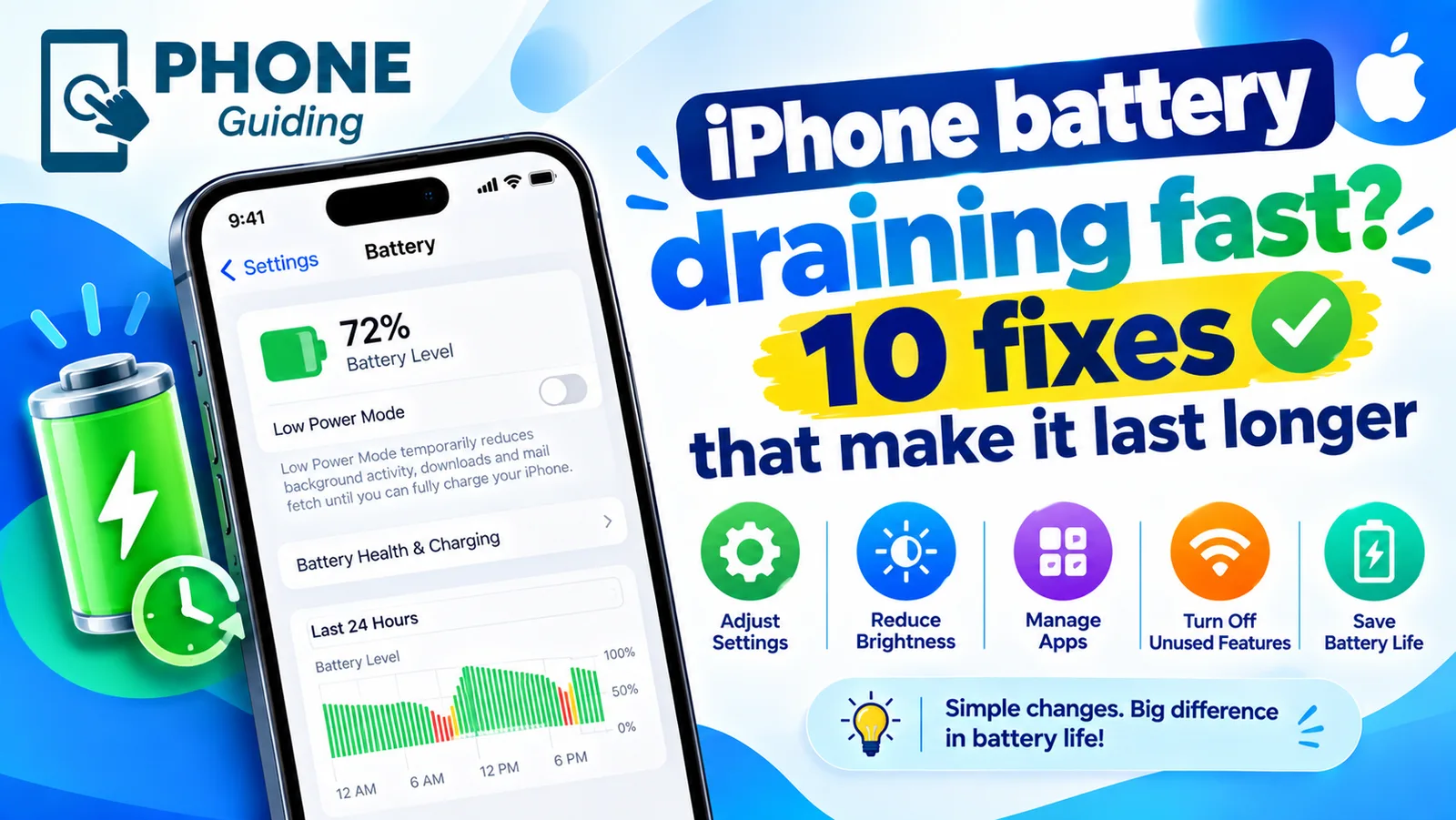
Battery drain has two very different causes: something on the phone is using too much power, or the battery can no longer hold a full charge. The fixes are completely different, so spend one minute working out which one you have before you change any settings.
Battery or software? Check this first
Open Settings › Battery › Battery Health. On iPhone 14 and older the menu is called Battery Health & Charging. Look at Maximum Capacity. If it is 80 percent or lower, or the screen says Service, the battery itself is worn and no setting will bring the lost hours back. A battery replacement will. If it is above 80 percent, the drain is almost always an app, a setting or a recent update, and the fixes below will help.
On iPhone 15 and later you will also see the cycle count on the same screen. A battery is designed to keep about 80 percent of its capacity for 1,000 cycles on these models, and 500 cycles on older ones, so a high count with a low percentage confirms the battery is simply old.
Why is my iPhone battery draining so fast all of a sudden?
When the drain starts suddenly, something changed. The most common triggers are:
- A new iOS version. After updating to iOS 27 or any major release, the phone spends a few days indexing and analyzing data in the background. Apple shows an Ongoing iOS Update note in Settings › Battery while this runs.
- One misbehaving app. A buggy update can keep an app awake in the background, using location or the processor nonstop.
- A weak signal. In a basement, a rural area or a crowded venue, the modem keeps boosting power to hold a connection.
- Heat. A hot phone, whether from the sun, a car dashboard or gaming, loses charge faster and ages the battery.
- A new phone setup. Restoring from a backup downloads every app and photo again, which can take a day or two. Settings may show Ongoing Device Setup.
How to read the Battery screen in iOS 26 and iOS 27
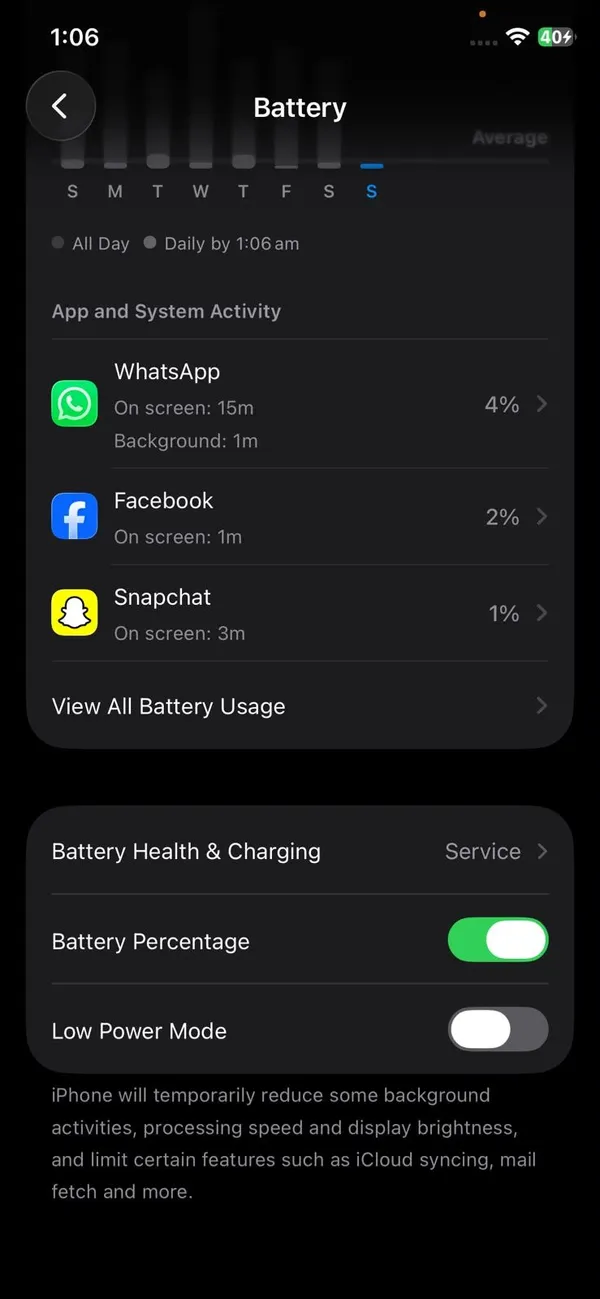
Since iOS 26, the Battery screen opens with a Daily Usage chart that compares today with your average over the last seven days. It tells you if you are using more, the same or less than usual. Tap View All Battery Usage to see each app. Apps that used far more than normal are highlighted, with a note explaining why: longer on screen, longer in the background, or more notifications than usual.
Pay attention to background time. An app you barely opened but that shows hours of background activity is the one to deal with. High on-screen use, on the other hand, just means you used that app a lot, and the only fix is using it less or lowering brightness. The top of the screen may also show Suggestions, such as turning on Auto-Brightness or Auto-Lock, based on how you use the phone.
The fix
10 fixes, starting with the biggest wins
- 1
Find the app draining your battery.
Go to Settings › Battery and tap View All Battery Usage. If one app has lots of background activity, update it, turn off its Background App Refresh and location access, or delete and reinstall it. If nothing helps, contact the developer or use the web version instead.
- 2
Wait a few days after an update.
Heavy drain right after an iOS update is usually temporary. Leave the iPhone on Wi-Fi and a charger overnight for two or three nights before judging the battery. If Settings still shows Ongoing iOS Update, the work is not finished yet.
- 3
Update your apps and iOS.
Apple and app developers fix battery bugs in point releases. Go to Settings › General › Software Update, then open the App Store, tap your profile picture and choose Update All. Do it while plugged in.
- 4
Limit Background App Refresh.
Go to Settings › General › Background App Refresh. Turn it off for games, shopping apps and anything that does not need fresh content when you open it. Keep it on for messaging, navigation and banking apps you rely on. Choosing Wi-Fi at the top of that screen also saves power on cellular.
- 5
Turn on Adaptive Power.
Go to Settings › Battery › Power Mode and turn on Adaptive Power. It needs iOS 26 or later and works on iPhone 15 Pro, iPhone 15 Pro Max, the iPhone 16 and iPhone 17 families, iPhone Air and iPhone 18 Pro. On iPhone 17 and later it is on by default. It learns your habits over about a week, then quietly lowers brightness a little, trims background work and switches on Low Power Mode at 20 percent on heavy days.
- 6
Lower brightness and use Auto-Brightness.
The screen is the biggest power user on any iPhone. Turn on Auto-Brightness in Settings › Accessibility › Display & Text Size, and set Auto-Lock to 30 seconds or 1 minute in Settings › Display & Brightness. Dark Mode also helps on iPhones with OLED screens, which includes every model from iPhone 12 onward except the iPhone SE.
- 7
Review Location Services.
Go to Settings › Privacy & Security › Location Services. Set apps to While Using instead of Always, and turn off Precise Location for apps that only need your city, like weather. Under System Services at the bottom, you can turn off location-based suggestions and alerts you never use.
- 8
Fix weak signal and 5G drain.
Use Wi-Fi whenever it is available. On a weak 5G signal, switch to LTE in Settings › Cellular › Cellular Data Options › Voice & Data, or choose 5G Auto so the phone only uses 5G when it will not cost much battery. If you are somewhere with no signal at all, turn on Airplane Mode so the phone stops searching.
- 9
Turn off notifications you do not need.
Every notification wakes the screen and the processor. Silence chatty apps in Settings › Notifications, or move them to a Scheduled Summary so they arrive in one batch.
- 10
Use Low Power Mode or replace the battery.
Low Power Mode, in Settings › Battery › Power Mode, pauses mail fetch, Hey Siri, Background App Refresh and some visual effects until you charge. It is safe to leave on all day. If Maximum Capacity is below 80 percent, though, a new battery is the only real fix.
Still draining? Try these next
- 1
Restart the iPhone.
A restart clears a stuck process that the Battery screen may not name. Press and hold the side button and either volume button, slide to power off, and turn it back on after 30 seconds.
- 2
Check iCloud and Photos sync.
A large photo library uploading to iCloud can run for days. Open the Photos app and scroll to the bottom to see if it is still syncing. Let it finish on Wi-Fi and a charger.
- 3
Reset all settings.
Go to Settings › General › Transfer or Reset iPhone › Reset › Reset All Settings. This puts every setting back to default without deleting your photos, apps or messages. You will need to rejoin Wi-Fi networks afterward.
- 4
Test with a clean setup.
As a last step before a repair, back up, erase the iPhone and set it up as new for a day without restoring the backup. If the battery lasts normally, the problem was in your old data or apps, and you can restore and reinstall apps one by one.
Is it worth replacing the battery?
Usually yes, if the rest of the phone still does what you need. A new battery restores the original battery life and can remove slowdowns caused by peak performance management on older iPhones. Apple's out-of-warranty price is $69 to $129 depending on the model, and it is free if you have AppleCare+ and the battery is below 80 percent. Authorized repair shops use the same genuine parts.
It makes less sense on a phone that no longer gets iOS updates, has a cracked screen as well, or is so slow that you already want a new one. In that case, compare the repair cost with its trade-in value before you pay for a new battery.
Frequently asked questions
Why does my battery drain faster after an iOS update?
After a major update, iOS rebuilds its search index, scans your photos and finishes app updates in the background. Settings › Battery may show an Ongoing iOS Update note while this runs. Drain usually settles within two or three days, faster if you leave the phone charging on Wi-Fi overnight.
Does closing apps save battery?
No. iOS pauses apps in the background on its own, and reopening a closed app from scratch uses more power than resuming it. Only close an app that is frozen or misbehaving.
When should I replace my iPhone battery?
Replace it when Maximum Capacity is around 80 percent or lower, when Battery Health says Service, or when the phone shuts down unexpectedly. Apple charges $69 to $129 depending on the model, and it is often done the same day.
Why is my iPhone losing battery overnight?
Losing 1 to 5 percent overnight is normal. More than that usually means an app is active in the background, an iCloud or photo sync is running, or the phone is on a weak signal. Check the Battery screen the next morning to see which app was busy while the screen was off.
What to try next
Related guides
Check data usage on iPhone
Check your cellular data usage on iPhone in Settings › Cellular, see which apps use the most, reset it on your billing date, and cut data use without Wi-Fi.
Stop spam texts on iPhone
Stop spam texts on iPhone with iOS 26 spam filtering, Screen Unknown Senders, blocking, reporting and forwarding to 7726. Plus how to spot scam texts.