

iPhone won't turn on? 7 fixes for a black or frozen screen
An iPhone that looks dead is usually drained, frozen or too hot. Work through these fixes in order before assuming the worst.
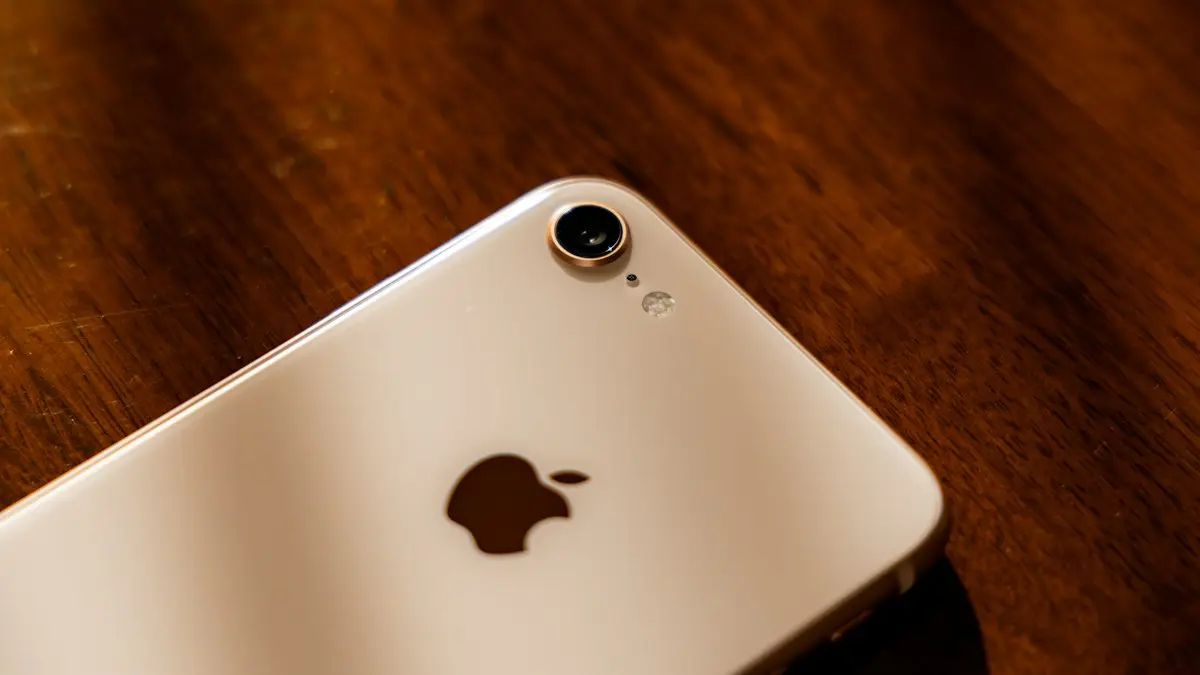
Photo by Omar Al-Ghosson on Unsplash
An iPhone that stays black when you press the side button is usually not broken. Apple’s own advice starts with charging it for an hour, because a fully drained battery needs time before the phone can even show a battery icon. The fixes below go from the most likely cause to the least likely, and none of the first six touch your data.
What the screen is telling you
- Nothing at all: the battery is empty, the iPhone is frozen with the screen off, or the display has failed. Work through the fixes below.
- A red or empty battery icon: the battery is too low to start. Apple says to leave it charging for 30 minutes or longer until it turns on by itself.
- A battery with a cable icon: the iPhone needs power but is not getting it. Check the cable, the adapter and the outlet.
- A computer and a cable: the iPhone is already in recovery mode. Connect it to a computer and choose Update.
- The Apple logo, then black again: the iPhone is failing to start. See our guide to an an iPhone frozen on the Apple logo.
How to fix an iPhone that won’t turn on
The fix
Work through these 7 fixes
- 1
Charge it for 30 minutes to an hour.
Use a wall adapter, not a laptop. A fully drained iPhone can show nothing, or just a red battery, for the first several minutes. Apple recommends charging for one hour before deciding it will not start. Do not keep pressing buttons during this time.
- 2
Force restart it while plugged in.
iPhone 8 and later: press and release volume up, press and release volume down, then press and hold the side button. Keep holding even if the screen stays black, until the Apple logo appears. iPhone 7: hold side and volume down. iPhone 6s and earlier: hold Home and side.
- 3
Try a different cable, adapter and outlet.
If the charging screen appears with a new cable, the old one was the problem.
- 4
Clean the charging port.
Shine a flashlight into the port and remove lint with a wooden toothpick. Never use metal.
- 5
Let it cool down if it is hot.
Take it out of the case, move it out of the sun and wait 30 minutes before trying again. Do not put it in a fridge or freezer to speed this up.
- 6
Try wireless charging.
If it starts on a MagSafe or Qi charger but not with a cable, the charging port needs repair.
- 7
Use recovery mode and choose Update.
Connect the iPhone to a Mac or a Windows PC with the Apple Devices app, do the force restart sequence and keep holding the side button until the recovery screen appears. Choose Update, which reinstalls iOS and keeps your data. If the download takes more than 15 minutes, the iPhone leaves recovery mode; repeat the button steps and the computer carries on where it stopped.
Screen black but the iPhone rings or vibrates?
Call your iPhone from another phone. If it rings or vibrates, or you hear sounds when you flip the Ring/Silent switch, the iPhone is on and only the display is not working. Try a force restart once more. If the screen stays black, the display or its connector is damaged and needs repair.
Before you book a screen repair, rule out two settings that make a working screen look dead. If you hear VoiceOver speaking when you touch the screen, Screen Curtain may be on: tap three times with three fingers to turn it off. If the screen is just extremely dim, ask Siri to “turn brightness up”. Both are rare, but they take seconds to check.
iPhone won’t turn on after an update
If the iPhone went black during or right after an iOS update, give it time first. Some updates show a black screen for several minutes while they finish, especially on older models. Leave it on a charger for 30 minutes and do not press any buttons. If it is still black, force restart it. If you then see the Apple logo with a progress bar, let it complete. If nothing changes, use recovery mode and choose Update; this reinstalls the same iOS version over the top without erasing your data.
iPhone won’t turn on after a drop
A fall can loosen or crack the display so the phone runs with nothing on the screen. Call the iPhone from another phone. If it rings, the phone works and the screen needs repair, and your data is safe. If there is no ring and no response to charging after an hour, the battery connector or board may be damaged. Either way, avoid pressing on a cracked screen and book a repair rather than repeatedly trying to start it.
Is my data safe?
In most cases, yes. Charging, force restarting and recovery mode with Update do not erase anything. Your data is only at risk if you choose Restore, or if a repair replaces the whole phone. Before that point, check what is already safe: sign in at icloud.com on a computer to see whether your photos, contacts and notes are there, and look in Settings › your name › iCloud › iCloud Backup on another Apple device for the date of your last backup.
If you have no backup and the phone will not start, tell the repair shop that the data matters. It changes how they approach the repair, and a phone revived for even a few minutes is enough to make a backup.
Signs it is a hardware problem
- No charging icon at all after an hour on a known good charger and cable.
- The back or screen is lifting, which can mean a swollen battery. Stop charging it.
- It got wet and now shows nothing, or only flickers.
- It gets hot while plugged in but never shows the Apple logo.
- Your computer does not see it at all, even in recovery mode.
If your iPhone got wet
Do not charge a wet iPhone or try to turn it on, since power running through wet parts causes the most damage, and newer iPhones may warn you about liquid in the port. Leave it off, dry the outside and tap the port facing down, then let it air dry for at least a day. Skip the rice and the hair dryer. If it still will not turn on after it is fully dry, book a repair quickly, because corrosion gets worse with time.
Before you take it to Apple
- Check your coverage at checkcoverage.apple.com with the serial number from the box or receipt. AppleCare+ makes most repairs much cheaper.
- Book at the Apple Support app or support.apple.com, or visit an Apple Authorized Service Provider. Walk-ins may wait longer.
- Know your Apple Account password and your passcode. You may be asked for them when you check the phone in, and again when you set it up afterward.
- If the phone cannot be revived, repair shops can sometimes recover data from it. Ask before agreeing to a replacement unit, because a replacement will not have your data.
A battery replacement at Apple costs $69 to $129 depending on the model. Screen and board repairs cost more, and on an older iPhone it is worth comparing the quote with the price of a replacement or a refurbished phone.
Frequently asked questions
Why won’t my iPhone turn on even when charging?
The cable or adapter may be faulty, the port may be blocked with lint, or the battery may be so drained it needs up to an hour before the screen responds. Try another cable and leave it on a wall charger for an hour.
My iPhone makes sounds but the screen is black. What does that mean?
The iPhone is on but the display is not working. A force restart sometimes fixes it. If not, the screen or its connector is damaged and needs repair.
Can a hot iPhone refuse to turn on?
Yes. If an iPhone overheats it shuts down to protect itself and will not start until it cools down. Move it somewhere cool, out of direct sun, and wait before trying again.
How much does it cost if the iPhone needs repair?
It depends on the model and the fault. A battery replacement is the cheapest fix. Liquid or logic board damage costs much more, so check your AppleCare+ or phone insurance first.
What to try next
People also ask
How long should I charge a dead iPad?
At least an hour on a wall adapter. A fully drained iPad can show nothing for the first several minutes.
Read the full guide: iPad won't turn onHow long should I charge a dead Samsung before it turns on?
Charge it for at least 30 minutes, ideally an hour. Samsung says the charging icon can take up to 10 minutes to appear on a fully drained phone.
Read the full guide: Samsung phone won't turn onWill a force restart delete my data?
No. A force restart only turns the phone off and on again. Your photos, messages and apps are not affected.
Read the full guide: Phone won't turn onWhy does holding the side button open Siri?
On iPhone X and later, holding the side button alone activates Siri. To turn the phone off, hold the side button and either volume button together until the slider appears.
Read the full guide: iPhone won't turn offRelated guides
iPad won't turn on
iPad won't turn on or stuck on a black screen? Charge it for an hour with a strong adapter, force restart it for your model, and try 5 more fixes before repair.

Samsung phone won't turn on
Samsung Galaxy won't turn on or stuck on a black screen? Charge it properly, force restart it, check for moisture and use recovery mode with these 7 fixes.

Phone won't turn on
Phone won't turn on or stuck on a black screen? Try the 3 checks that revive most phones, then force restart steps for iPhone, Samsung, Pixel and more.

iPhone won't turn off
iPhone won't turn off? On newer models you hold the side and volume buttons, not just the side button. Here are 5 ways to shut it down, even when frozen.
More guides you may need
iPhone alarm not going off
iPhone alarm not going off, too quiet or only vibrating? Check the 10 settings that silence alarms, including the iOS 27 alarm volume, and stop oversleeping.

iPhone auto brightness not working
iPhone auto brightness not working or the screen keeps changing? Check the Accessibility switch, light sensor, Low Power Mode and heat, then try 3 more fixes.