

Face ID not working? 10 fixes for iPhone and iPad
Face ID problems are usually settings or something blocking the camera. The exact message on screen tells you whether it is a quick fix or a repair.
Photo by Miguel Tomás on Unsplash
Face ID uses the TrueDepth camera at the top of the screen. It projects thousands of invisible infrared dots onto your face, reads the pattern with an infrared camera, and compares it with the map stored securely on your iPhone. Anything that blocks those sensors, confuses the map or breaks the camera stops it working. That is why the fix depends on what the iPhone tells you.
What message are you seeing?
If that did not work
Face ID simply fails and asks for your passcode
This is almost always fixable at home with the steps below.
“Face ID is not available. Try setting up Face ID later.”
Restart the iPhone and update iOS. If the message stays, the TrueDepth camera is not responding and needs a repair.
“Move iPhone lower” or “Move iPhone higher”
Hold the phone about 10 to 20 inches from your face and look straight at it. Clean the sensors if it keeps appearing.
Why is my iPhone asking for the passcode instead?
Sometimes Face ID is working fine, and iOS is asking for the passcode on purpose. Apple requires the passcode when:
- The iPhone was just turned on or restarted.
- It has not been unlocked for more than 48 hours.
- The passcode has not been used in the last six and a half days, and Face ID has not unlocked it in the last four hours.
- Face ID failed five times in a row.
- You pressed and held the side button and a volume button to show the power off or Emergency SOS screen.
- The iPhone received a remote lock command, for example from Find My.
Enter your passcode once and Face ID works again. If it asks for the passcode every time, the steps below apply.
How to fix Face ID
The fix
Try these in order
- 1
Clean the top of the screen.
Wipe the notch or Dynamic Island area with a soft, dry cloth. Smudges, makeup and pocket dust block the sensors. While you are there, open the Camera app and switch to the front camera: if the picture is black, blurry or the app shows an error, the TrueDepth camera itself is likely damaged.
- 2
Remove whatever might be in the way.
Take off a case or screen protector that covers the sensors, and make sure your eyes, nose and mouth are visible. Privacy screen protectors and cheap protectors without a proper cutout are common culprits, especially if the problem started when you fitted one.
- 3
Hold the phone in portrait orientation.
iPhone 12 and earlier only support Face ID in portrait. Newer models also work in landscape, but portrait is the most reliable.
- 4
Restart the iPhone.
Turn it off and on again. After a restart you need your passcode once, then Face ID should work. A restart clears a stuck process that can leave the TrueDepth camera unresponsive.
- 5
Check that Face ID is turned on.
Go to Settings › Face ID & Passcode and make sure iPhone Unlock and any other features you use are switched on.
- 6
Turn on Face ID with a Mask if you wear one.
In the same menu, turn on Face ID with a Mask (iPhone 12 and later) and follow the setup. If you wear glasses with a mask, tap Add Glasses afterward.
- 7
Set up an Alternate Appearance.
If your look changes often, for example with glasses or makeup, tap Set Up an Alternate Appearance and scan your face in that look.
- 8
Update iOS.
Go to Settings › General › Software Update. Face ID bugs are sometimes fixed in updates, so install the latest version even if it is only a small point release.
- 9
Reset Face ID and set it up again.
Go to Settings › Face ID & Passcode › Reset Face ID, then tap Set Up Face ID. Do this in good light, without sunglasses.
- 10
Reset all settings.
As a last software fix, go to Settings › General › Transfer or Reset iPhone › Reset › Reset All Settings. Your photos and apps stay, but settings return to default.
Glasses, beards, masks and changing looks
Face ID adapts to gradual changes in your appearance, such as a growing beard or new haircut, every time you enter your passcode right after a failed attempt. Sudden changes are harder:
- Glasses: clear glasses work fine. Some sunglasses block infrared light; try tilting them or turning off Require Attention.
- Shaving a full beard, or heavy makeup: set up an Alternate Appearance for the new look, or reset Face ID once your appearance settles.
- Masks: Face ID with a Mask reads the area around your eyes. It needs iPhone 12 or later, and you can add glasses to it separately in the same menu.
- Hats, scarves and hoods: these rarely block Face ID unless they cover your eyes or most of your face.
Can someone else unlock my iPhone with Face ID?
Apple puts the chance of a random person unlocking your iPhone with Face ID at less than one in a million. The chance is higher for identical twins, siblings who look alike, and children under 13, whose faces are still developing. If that worries you, use your passcode instead. Anyone you add with Alternate Appearance can unlock your phone, so only add yourself there.
Face ID not working in apps or for Apple Pay?
- Banking and other apps: go to Settings › Face ID & Passcode › Other Apps and turn the app on. Then check the app’s own settings, since most banking apps have a separate Face ID switch that turns off after you reinstall them or change phones.
- Apple Pay: make sure Wallet & Apple Pay is on in Face ID & Passcode. To pay, double-click the side button, glance at the iPhone, then hold it near the reader.
- App Store purchases: turn on iTunes & App Store in the same menu. You still double-click the side button to confirm a purchase.
- Passwords and AutoFill: turn on Password AutoFill in Face ID & Passcode if Face ID no longer fills saved passwords.
Face ID stopped working after an update
If Face ID broke right after updating iOS, restart the iPhone first, then check whether a newer point update is available in Settings › General › Software Update. Apple usually fixes widespread Face ID bugs within a few weeks. If the problem continues and you see “Face ID is not available”, the update may simply have exposed an existing hardware fault, especially on a phone that was dropped or repaired before.
Getting Face ID repaired
Face ID hardware is paired to the iPhone’s main board for security, so it cannot simply be swapped at any shop. Apple and Apple Authorized Service Providers can test the TrueDepth camera and tell you the price for your model before any work starts. On some models the repair means replacing the phone, which can be expensive out of warranty, so check your AppleCare+ status or phone insurance first.
Until then, your iPhone still works with the passcode. Set a strong six-digit code or longer, and keep the phone’s other security features, like Find My and Stolen Device Protection, turned on.
Frequently asked questions
What does “Face ID is not available” mean?
It usually means the iPhone cannot talk to the TrueDepth camera. If a restart does not clear it, it is a hardware problem, often after a drop, water damage or a screen repair.
Why does Face ID not work with sunglasses?
Some polarized sunglasses block the infrared light Face ID uses. Try without them, or turn off Require Attention for Face ID if you often wear sunglasses.
Does a screen protector affect Face ID?
A thick or badly fitted protector that covers the top sensors can. A normal glass protector with a proper cutout for the notch or Dynamic Island should not.
Why does Face ID not work lying down?
It works in any position on newer iPhones, but the whole face must be in view. On older models it only works in portrait.
People also ask
Why did this start after I dropped my iPhone?
A drop can shift or damage the TrueDepth parts behind the notch or Dynamic Island. If cleaning and a reset do not help, it needs repair.
Read the full guide: Face ID move iPhone lowerIs the iPhone 18 Pro Face ID problem hardware or software?
Apple fixed it with software in iOS 27.0.1, so for most people no repair or replacement should be needed. If Face ID still fails or the phone still restarts after installing the update, ask Apple to run diagnostics.
Read the full guide: iPhone 18 Pro Face ID bugWhere do hidden apps go?
Into the Hidden folder at the bottom of the App Library. It opens with Face ID, Touch ID or your passcode.
Read the full guide: Hide apps on iPhoneWhy does my Apple ID keep getting locked?
Someone may be trying to sign in with your email, or an old device keeps using an old password. Turn on two factor authentication and update the password on all your devices.
Read the full guide: Apple ID lockedRelated guides
Face ID move iPhone lower
Face ID keeps saying move iPhone lower or higher? Clean the camera area, remove the screen protector, restart and reset Face ID, then know when it is hardware.
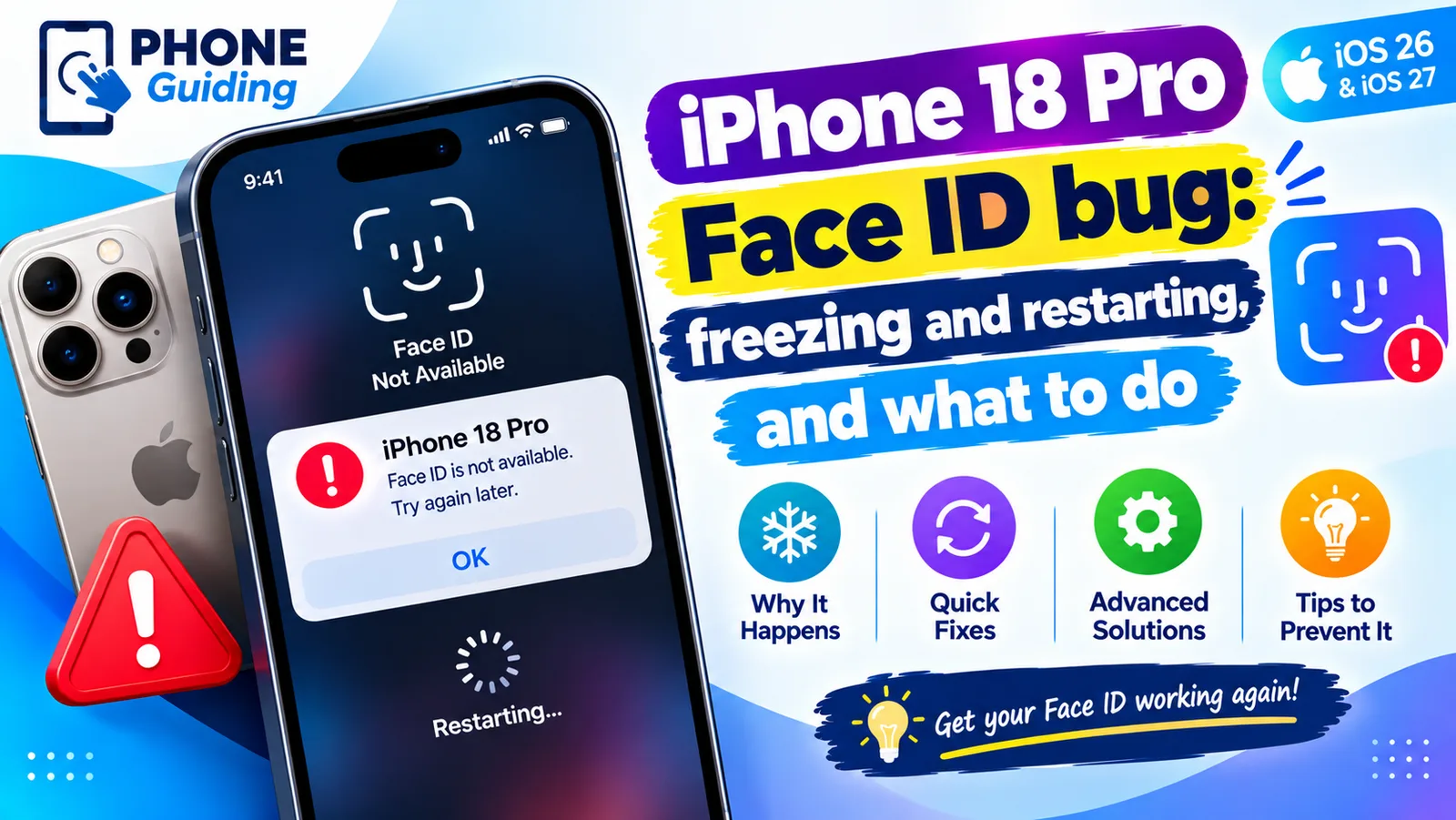
iPhone 18 Pro Face ID bug
iPhone 18 Pro or Pro Max freezing and restarting after Face ID fails? Here is what triggers the bug, a safe workaround, and the iOS 27.0.1 update that fixes it.
Hide apps on iPhone
Hide apps on iPhone in the locked Hidden folder, or just remove them from the Home Screen. Also how to find hidden apps and hide App Store purchases.
Apple ID locked
Apple ID locked for security reasons? Unlock it by resetting your password on a trusted iPhone or at iforgot.apple.com, and stop it from locking again.
More guides you may need
iPhone keeps asking to change passcode
iPhone keeps asking to change passcode or says to update it within 60 minutes? Find the profile or work email causing it, meet the rule and stop the prompt.
iPhone keeps asking to trust this computer
iPhone keeps asking to trust this computer every time you plug in? Learn the three real causes and Apple's six-step fix to make the alert stop for good.