

iPhone not connecting to Wi-Fi? 10 fixes (including no internet)
There are two different problems: the iPhone will not join the network, or it joins but nothing loads. These fixes cover both.
The fix
10 fixes, quickest first
- 1
Turn Wi-Fi off and on.
Settings › Wi-Fi. Wait 10 seconds before turning it back on.
- 2
Check the router works.
Try another phone or laptop. If none can get online, restart the router.
- 3
Restart the router the right way.
Unplug it for 30 seconds, plug it back in, and wait a few minutes for the lights to settle.
- 4
Forget the network and rejoin.
Tap the ⓘ next to the network, tap Forget This Network, then join again with the password.
- 5
Look for a sign-in page.
Hotel, airport and coffee shop Wi-Fi need you to accept terms. Open Safari to trigger the page.
- 6
Renew the lease.
Tap the ⓘ next to the network, then Renew Lease.
- 7
Turn off Private Wi-Fi Address for this network.
In the network’s ⓘ screen, set Private Wi-Fi Address to Off. Some routers block changing addresses.
- 8
Turn off VPN and security apps.
Check Settings › VPN and any VPN app. Test with it off.
- 9
Update iOS.
Use cellular data if needed: Settings › General › Software Update.
- 10
Reset network settings.
Settings › General › Transfer or Reset iPhone › Reset › Reset Network Settings. You will re-enter Wi-Fi passwords.
Frequently asked questions
Why does my iPhone say No Internet Connection on Wi-Fi?
The iPhone joined the router, but the router is not getting internet, or the network needs a sign-in page. Check another device, restart the router, and open Safari to see if a login page appears.
Why does Wi-Fi work on other devices but not my iPhone?
Usually a saved network setting, Private Wi-Fi Address, a VPN or an old iOS version. Forget the network, turn off VPN, and reset network settings if needed.
What to try next
Related guides
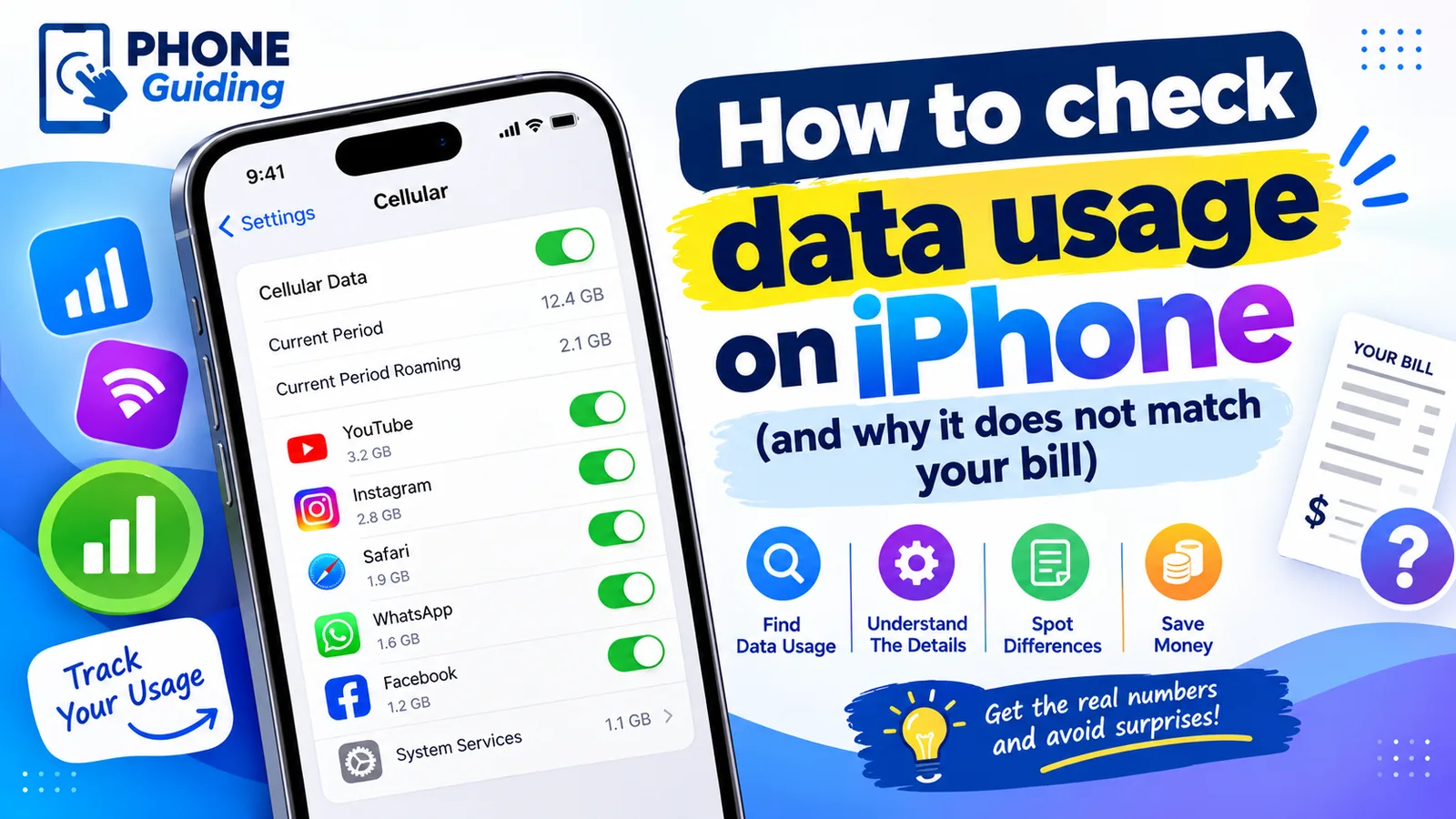
Check data usage on iPhone
Check your cellular data usage on iPhone in Settings › Cellular, see which apps use the most, reset it on your billing date, and cut data use without Wi-Fi.
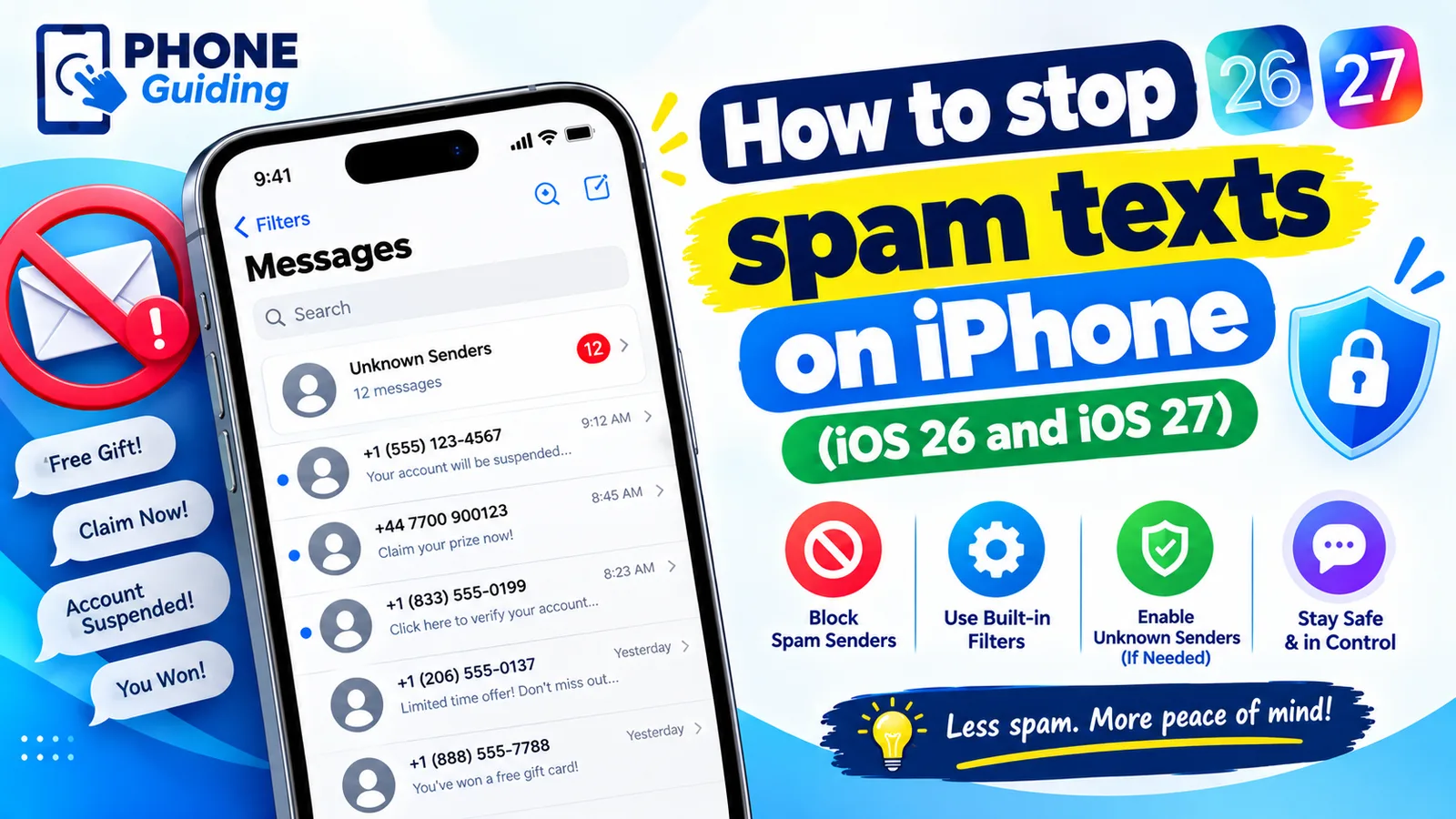
Stop spam texts on iPhone
Stop spam texts on iPhone with iOS 26 spam filtering, Screen Unknown Senders, blocking, reporting and forwarding to 7726. Plus how to spot scam texts.