

What does the orange dot mean on iPhone? (And the green dot)
The colored dot at the top of your screen is a privacy alert. It tells you when an app is listening or watching.
What each color means
- Orange dot: the microphone is in use, for example during a call, with Siri or when recording audio.
- Green dot: the camera is in use, with or without the microphone.
- Blue arrow or pill: an app is using your location.
The fix
Find out which app used it
- 1
Swipe down from the top-right corner to open Control Center.
- 2
Look at the top of the screen for the app name and whether it used the microphone or camera.
The fix
Stop an app using the microphone
- 1
Open Settings › Privacy & Security › Microphone.
- 2
Turn off the switch next to any app that should not have access.
Why Apple added the dots
Apple introduced the colored indicators in iOS 14 to give you more control over your privacy. Before that, an app could use the microphone or camera in the background and you would never know. Now whenever any app taps either one, a small dot appears in the status bar near the top of the screen. The dot cannot be faked by an app, since iOS controls it, which makes it a trustworthy signal. It appears on iPhones with the Dynamic Island or the notch, and next to the clock or signal bars on older iPhones.
The orange dot, the green dot and the others
- Orange dot: the microphone is in use. It turns on during phone calls, voice memos, Siri, dictation, video calls and voice messages.
- Green dot: the camera is on. It also appears when the camera and microphone are used together, for example in a video call.
- Blue indicator: an app is using your location, shown as an arrow or a pill in newer versions.
- Purple indicator: screen or system audio recording on newer versions of iOS, shown when something is recording the screen.
Which colors you see depends on your iOS version. If you see something you do not recognize, open Control Center and check the app name that Apple lists at the top.
The orange dot appears when no app is open
This is the most common worry. Reasons it can happen include a call or voice message in the background, an app that keeps listening on purpose such as a music recognition app, Siri or Hey Siri, a Bluetooth headset, a car system, a dictation session or a video call in a minimized window. Check Control Center first. If an app you did not expect is listed, open Settings › Privacy & Security › Microphone and turn off access. Also check App Privacy Report, which shows which apps used the microphone, camera and location in the last seven days.
Turn on App Privacy Report
Open Settings › Privacy & Security › App Privacy Report and tap Turn On App Privacy Report. After a day or two, it shows how often each app used your microphone, camera, location, photos and contacts, and which websites the apps connected to. If an app uses the microphone far more than you would expect, delete it or change its permission. This is the best way to answer whether an app is listening.
Does the orange dot mean someone is listening?
Almost always not. A dot means an app on your phone is using the microphone, not that another person has joined. The real concern is an app you installed that you do not trust, or a spyware app installed by someone with access to your phone. If you suspect that, check the list of apps in Settings, look for apps you did not install, update iOS and change your Apple Account password. Our guide to checking an iPhone for a virus or spyware goes through the signs and fixes.
Stop the dot from appearing for one app
- Open Settings › Privacy & Security › Microphone and turn off the app. For the camera, use Camera in the same menu.
- For apps that only need access sometimes, choose the option to ask each time, where it is available.
- Delete apps you no longer use, since they may still hold the permission.
- Turn off Hey Siri and Siri when locked if you do not use them. See Siri turning on by itself.
The dot is always on or it flickers
A dot that stays on for a long time after a call may mean an app did not release the microphone. Close the app from the app switcher and see whether the dot goes. If it comes back, restart the iPhone and update iOS. A flicker is normal when you use voice typing or when Siri listens for a moment. If the dot is on while the phone is locked and you did not start a call, check Control Center for the app name.
The orange dot on iPad and Mac
The same indicator exists on iPad and on a Mac with a menu bar, where an orange dot sits near the Control Center icon when the microphone is on, and a green dot shows the camera. On a Mac, click Control Center to see which app is using the mic. The privacy setting lives in System Settings › Privacy & Security.
Common apps that trigger the orange dot
- Phone and FaceTime, during any call.
- Messages, when you record an audio message or dictate.
- Voice Memos, Siri and Shortcuts that listen.
- Instagram, TikTok, Snapchat and WhatsApp when you record a video or a voice message.
- Zoom, Teams, Google Meet and other meeting apps.
- Shazam, Google Assistant and other voice apps.
- Games with voice chat.
If you see the dot while you use one of these, nothing is wrong. The question is only whether it appears when none of them should be running.
What to do if you see the dot at odd times
- Swipe down from the top right to open Control Center and read the app name.
- Check Settings › Privacy & Security › Microphone for apps that you do not remember.
- Delete apps you no longer use or do not trust.
- Update iOS in Settings › General › Software Update, since updates fix bugs that keep the mic on.
- Restart the iPhone, which clears stuck background tasks.
The microphone and camera indicators on AirPods and car systems
A Bluetooth headset or a car system can use the iPhone microphone through the connection. The orange dot may show when your phone uses the headset mic, for example in a call. If the dot appears when you wear AirPods without a call, check which app is open. If your mic does not work or sounds muffled, see fixing a phone microphone that does not work.
Is the camera light the same as the green dot?
The green dot is the main sign that the camera is on. iPhones do not have a separate light for the front camera. The flash is a different thing: it only lights for photos, videos or the flashlight. If you see the green dot with no app open, check Control Center and Settings › Privacy & Security › Camera. Our guide to a phone camera that is not working covers other camera problems.
Quick privacy habits that help
- Allow microphone and camera only while using the app, where iOS offers that choice.
- Review permissions every few months.
- Do not install apps from unknown links.
- Keep iOS up to date.
- Use a passcode and Face ID so only you can open the phone.
Parents and shared phones
On a child's iPhone, the dots work the same way. You can restrict access to the microphone and camera under Screen Time › Content & Privacy Restrictions › Microphone and Camera. Set it to Don't Allow Changes so the child cannot turn permissions on again. Talk with older children about why the dots matter, and show them how to read Control Center.
Dot colors on older and newer iOS versions
The orange and green dots arrived in iOS 14. Newer versions add finer details, such as the app name next to the dot in Control Center and the App Privacy Report. If your iPhone runs an older iOS and you do not see the dots, update in Settings › General › Software Update. The iPhone 6s and some older models cannot run iOS 14 or later, so they have no indicators. For those phones, check the Privacy settings by hand to see which apps hold permissions.
Frequently asked questions
Does the orange dot mean I am being hacked?
Usually not. It appears whenever any app uses the microphone, including calls, Siri and voice messages. Only worry if Control Center shows an app you do not expect.
Can I turn off the orange dot?
No. It is a privacy feature and cannot be hidden. You can stop it appearing for a specific app by removing that app’s microphone permission.
Related guides
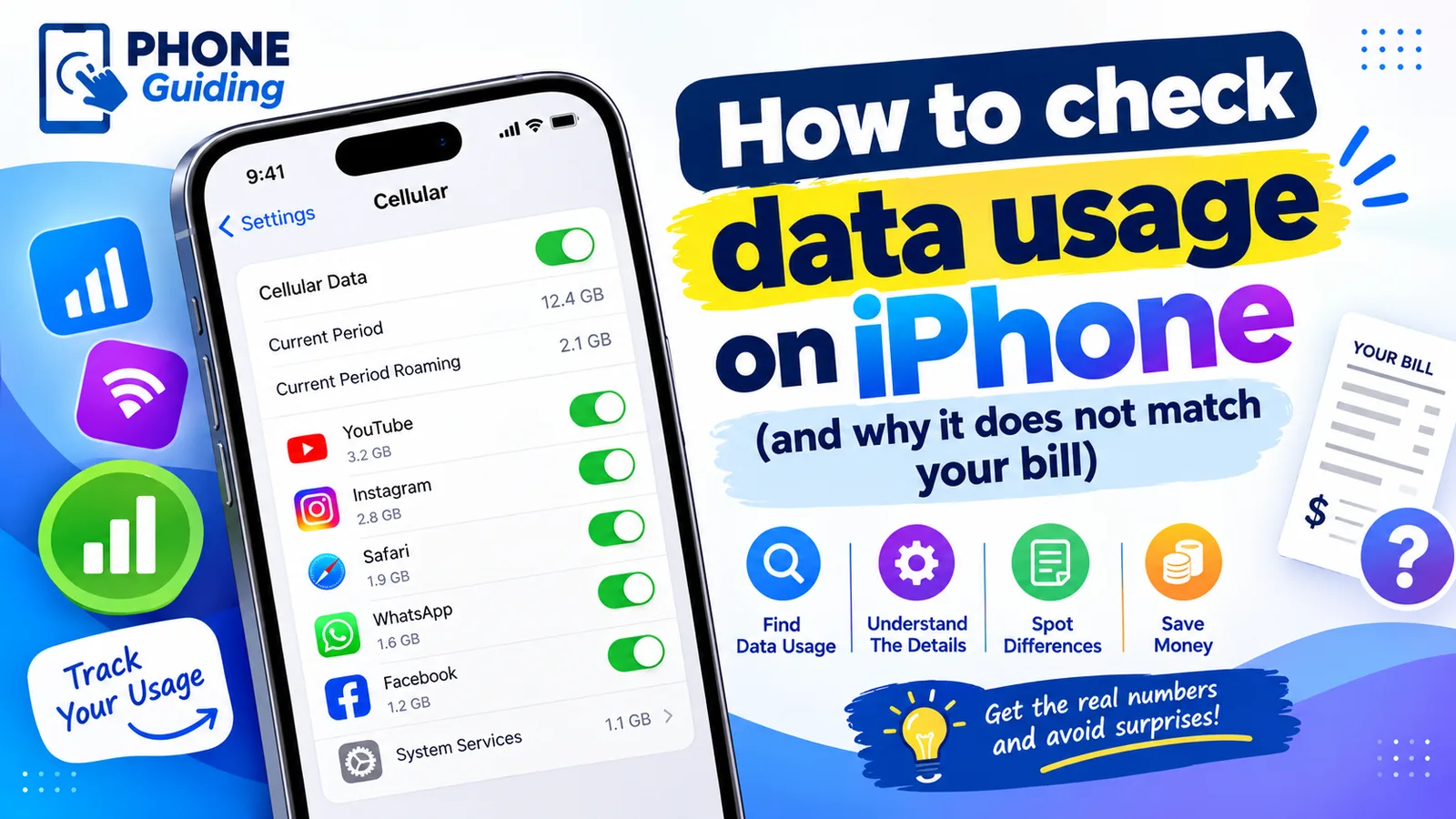
Check data usage on iPhone
Check your cellular data usage on iPhone in Settings › Cellular, see which apps use the most, reset it on your billing date, and cut data use without Wi-Fi.
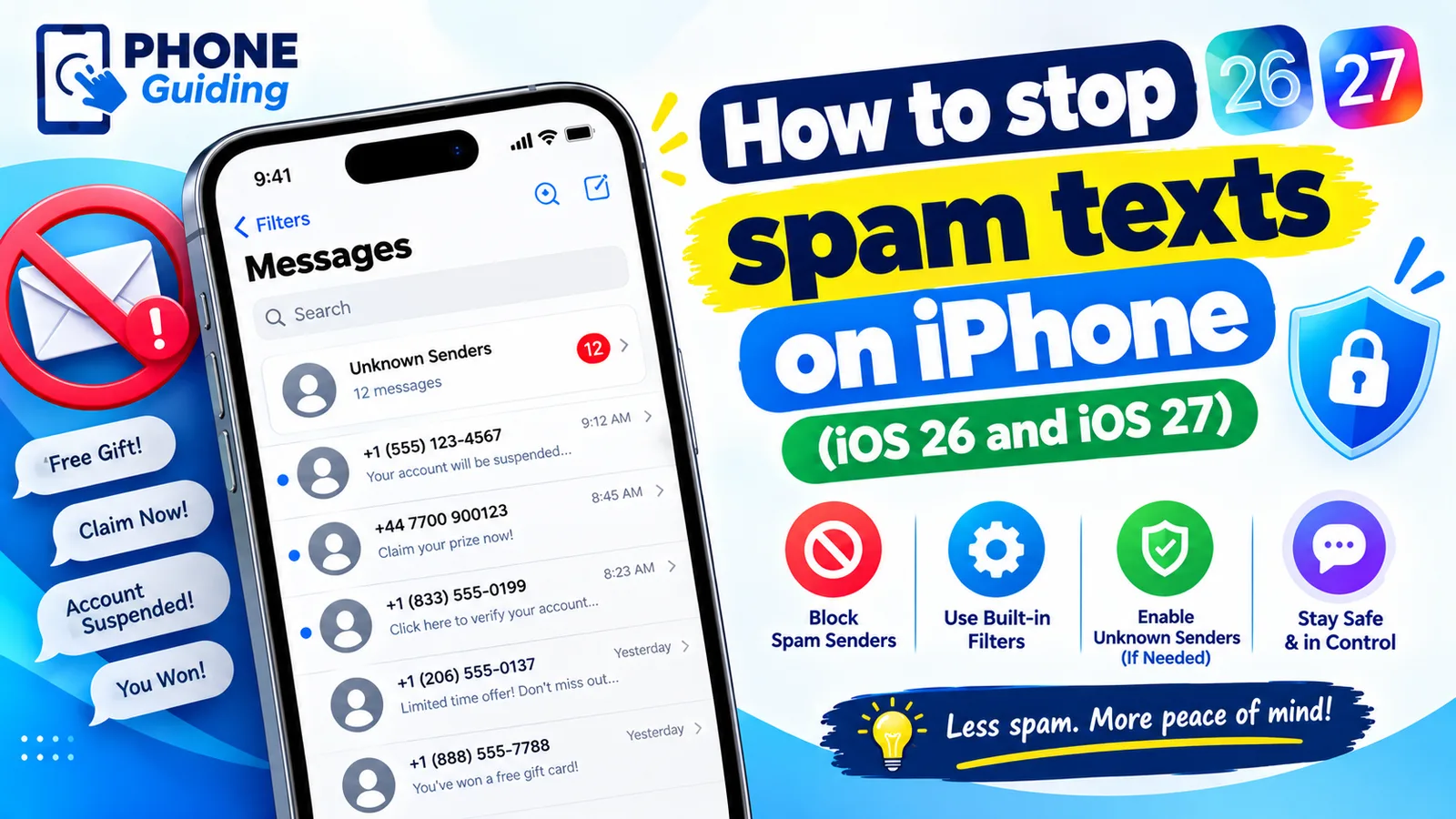
Stop spam texts on iPhone
Stop spam texts on iPhone with iOS 26 spam filtering, Screen Unknown Senders, blocking, reporting and forwarding to 7726. Plus how to spot scam texts.