

How to turn on Wi-Fi Calling on iPhone (and fix it)
Wi-Fi Calling lets your iPhone call over Wi-Fi when cell signal is weak. It is free on most US carriers.
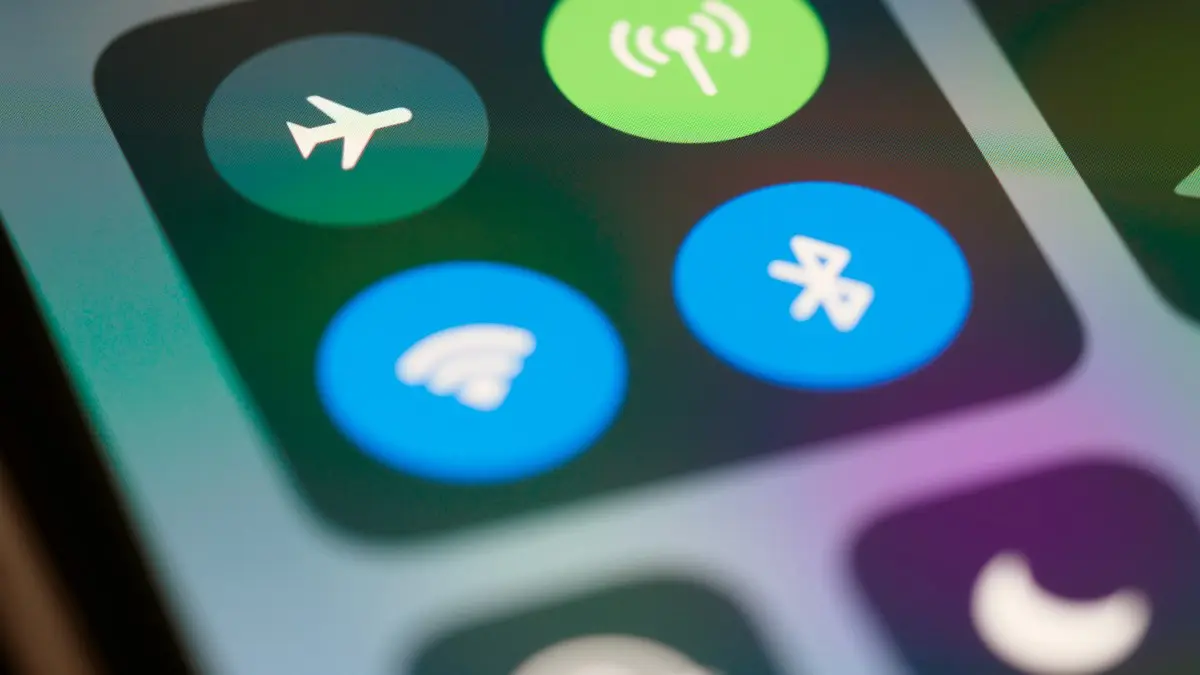
Photo by Brett Jordan on Unsplash
Wi-Fi Calling routes your normal phone calls and texts over a Wi-Fi network when your cell signal is weak, such as in a basement, a big office building or a rural home. You keep your own number and your usual Phone and Messages apps; nothing extra to install. It takes a minute to set up and usually fixes dropped calls at home for good. Below are the steps, what to do when the option is missing, and how to use it while traveling.
How to turn on Wi-Fi Calling on iPhone
The fix
Turn it on
- 1
Open Settings › Cellular.
On iPhones set to UK English, it is called Mobile Data.
- 2
Tap Wi-Fi Calling.
With two lines, choose the line first, then Wi-Fi Calling.
- 3
Turn on Wi-Fi Calling on This iPhone and confirm.
- 4
Add your emergency address.
US carriers require a street address so 911 can find you if a call goes over Wi-Fi. Enter your home address, and update it if you move. Some carriers take you to their website for this step.
- 5
Check the status bar.
On Wi-Fi, it shows your carrier name followed by Wi-Fi, for example Verizon Wi-Fi. That means calls will use Wi-Fi.
What you need
- Connect to a Wi-Fi network with a working internet connection. Wi-Fi Calling cannot work on a network that only shows the Wi-Fi symbol without internet.
- Update your iPhone in Settings › General › Software Update. Older iOS versions may not support your carrier’s latest Wi-Fi Calling setup.
- Have your home address ready for the emergency address step.
- Know your carrier account login, in case the carrier’s website opens to confirm the address.
Which carriers support Wi-Fi Calling?
Verizon, AT&T and T-Mobile all support Wi-Fi Calling on iPhone at no extra cost for calls to US numbers. Most prepaid brands that use their networks, such as Visible, Cricket, Metro and Mint Mobile, support it too, though a few older or very cheap plans do not. If the Wi-Fi Calling option does not appear at all, check your carrier’s website or app for your plan.
If Wi-Fi Calling is missing or not working
The fix
Fixes, in order
- 1
Check your carrier supports it on your plan.
The carrier’s app or website lists it.
- 2
Update iOS and install any carrier settings update.
Go to Settings › General › About and wait a few seconds; tap Update if a carrier settings pop-up appears.
- 3
Add or fix the emergency address.
A missing or rejected address is the most common reason the switch will not turn on. Update it in Settings › Cellular › Wi-Fi Calling, or in your carrier account online.
- 4
Turn Wi-Fi Calling off and on, then restart the iPhone.
Wait a minute after the restart, then check the status bar on Wi-Fi again.
- 5
Try another Wi-Fi network.
Some office, school, hotel and public networks block the connection Wi-Fi Calling uses. If it works at home but not elsewhere, the network is the cause.
- 6
Turn off a VPN.
VPNs and some security apps can stop Wi-Fi Calling from connecting to your carrier. Pause them and test again.
- 7
Reset network settings.
Settings › General › Transfer or Reset iPhone › Reset › Reset Network Settings. You will need to rejoin Wi-Fi networks afterward.
On, but calls still use cellular?
When both Wi-Fi and a decent cell signal are available, the carrier decides which to use, and it often picks cellular. That is normal. Wi-Fi Calling mainly steps in when the cell signal is weak. If you want to test it, turn on Airplane Mode, turn Wi-Fi back on, and make a call; the status bar should show Wi-Fi next to your carrier name.
Texts over Wi-Fi
With Wi-Fi Calling on, regular green-bubble texts and picture messages also go over Wi-Fi on most US carriers, so they send and arrive even with no cell signal. iMessages already use the internet and work on any Wi-Fi without this setting. If texts to Android users still fail on Wi-Fi, see our guide to an iPhone not receiving texts.
New iPhone or new number?
Wi-Fi Calling does not always carry over when you move to a new iPhone or transfer your eSIM. After setting up, check Settings › Cellular › Wi-Fi Calling and turn it on again, and confirm the emergency address. With two lines, each line has its own Wi-Fi Calling switch, so turn it on for both if both carriers support it.
Calls drop when you leave the house
Calls that start on Wi-Fi should hand over to the cell network as you walk away, but if the cell signal outside is weak, the handover can fail. Before leaving a weak-signal area, finish the call or move to where you have cell bars. Walking out of Wi-Fi range while signal is already poor is the usual reason for a drop right at the front door.
Using Wi-Fi Calling abroad
Wi-Fi Calling is one of the cheapest ways to call home when traveling. Turn on Airplane Mode so you do not connect to foreign networks and pay roaming, then turn Wi-Fi back on and join the hotel or café network. With Wi-Fi Calling on, calls and texts to US numbers work as if you were at home on most US carriers. Calls to local numbers in the country you are visiting may be charged as international calls. See our guide to your phone in Mexico for a full travel setup.
Use Wi-Fi Calling on iPad, Mac and Apple Watch
- 1
On the iPhone, go to Settings › Cellular › Wi-Fi Calling and turn on Add Wi-Fi Calling for Other Devices, if your carrier offers it.
- 2
Go to Settings › Apps › Phone › Calls on Other Devices and turn on Allow Calls on Other Devices, then choose your devices.
- 3
On the iPad or Mac, turn on Calls from iPhone in FaceTime settings. Use the same Apple Account everywhere.
Once set up, your iPad, Mac or Apple Watch can make and answer calls with your number over Wi-Fi even when the iPhone is off or somewhere else. This is handy if your iPhone is charging in another room, or if you leave it at home by mistake.
Wi-Fi Calling vs WhatsApp and FaceTime
- Wi-Fi Calling: uses your real phone number, works with anyone including landlines, and needs no app. Best for everyday calls where signal is weak.
- FaceTime Audio and WhatsApp calls: free internet calls between people using the same app, great for international calls to friends who have it, but they do not reach landlines or businesses.
How to turn Wi-Fi Calling off
Go back to Settings › Cellular › Wi-Fi Calling and turn off Wi-Fi Calling on This iPhone. There is little reason to, but some people turn it off when a poor public Wi-Fi network makes calls choppy.
Does Wi-Fi Calling use data?
It uses your Wi-Fi network’s data, not your cellular plan, and a voice call needs only a small amount. It does not count against your cell data allowance. On a very slow or crowded Wi-Fi network, call quality can be worse than on a decent cell signal, so if calls sound choppy, turn Wi-Fi off to test.
Still weak signal at home?
If you rely on Wi-Fi Calling at home every day, it is doing its job. But if your home Wi-Fi is also unreliable, ask your carrier about a network extender, check whether another carrier has stronger coverage at your address, or look at a carrier-approved signal booster. Our guide to what Wi-Fi Calling is explains how it compares with apps like WhatsApp and FaceTime.
Frequently asked questions
Does Wi-Fi Calling cost extra?
Not on major US carriers. Calls to US numbers count like normal calls. Calls to international numbers can be charged at your plan’s international rates.
How do I know it is working?
The status bar shows your carrier name followed by Wi-Fi when a call will use Wi-Fi. Open Control Center to see it on iPhones with Face ID.
Why is Wi-Fi Calling greyed out?
Usually the carrier has not enabled it for your line, or the emergency address is missing. Update carrier settings, restart, and add the address in your carrier account if the iPhone does not ask.
Can I use Wi-Fi Calling abroad?
Often yes. With Airplane Mode on and Wi-Fi turned back on, many US carriers let you call US numbers over Wi-Fi at no extra cost. Check your carrier’s rules before you travel.
What to try next
Sources
Official pages these steps are based on. Menus can differ by software version.
People also ask
Is Wi-Fi Calling free?
On major US carriers, calls to US numbers are free or count like normal minutes. Calls to other countries may cost extra.
Read the full guide: What is Wi-Fi CallingWhy is there no Wi-Fi Calling option on my Samsung?
Your carrier may not support it on that plan or phone, the SIM may not be fully activated, or Samsung’s software is out of date. Update the phone first, then ask your carrier to enable Wi-Fi Calling on your line.
Read the full guide: Samsung Wi-Fi calling not workingWhy do my calls drop when I move around the house?
Signal changes from room to room. Turning on Wi-Fi Calling lets the iPhone use your home Wi-Fi for calls, which fixes most indoor drops.
Read the full guide: iPhone dropping callsWhy does my iPhone say No Service?
The phone cannot connect to your carrier's network. Common causes are a carrier outage, a weak signal, a software glitch, a SIM or eSIM problem or an account issue such as a suspended line.
Read the full guide: iPhone no serviceRelated guides
What is Wi-Fi Calling
Wi-Fi Calling lets your phone make normal calls and texts over Wi-Fi when cell signal is weak. How it works, what it costs and how to turn it on.
Samsung Wi-Fi calling not working
Samsung Wi-Fi calling not working or missing? Turn it on, add your emergency address, check your carrier and reset network settings. 7 fixes for Galaxy phones.
iPhone dropping calls
iPhone keeps dropping calls or saying Call Failed? Switch 5G to LTE, turn on Wi-Fi Calling, update carrier settings, reset the network and try 5 more fixes.
iPhone no service
iPhone no service or searching? Try 10 fixes in order: Airplane Mode, restart, carrier update, SIM check, network reset and more, plus outage checks.
More guides you may need
Change AirDrop name on iPhone
How to change AirDrop name on iPhone: edit your iPhone name and your contact card, because AirDrop shows one or the other. Fix a name that won't update.
Change alarm sound on iPhone
Change your iPhone alarm sound to a new tone or a song in the Clock app, set the alarm volume and vibration, and fix an alarm that makes no sound.