

iPhone Wi-Fi keeps disconnecting? 9 fixes that stop the drops
Wi-Fi that drops again and again is often caused by one privacy setting that some routers do not like. Start there.
Photo by appshunter.io on Unsplash
A Wi-Fi connection that comes and goes is more irritating than one that never works, because it fails at the worst moments: in the middle of a video call, a download or a game. The good news is that the cause is usually one of a few settings. This guide starts with the most likely cause and moves toward the router and the hardware.
How to stop iPhone Wi-Fi from disconnecting
The fix
9 fixes, most likely first
- 1
Turn off Private Wi-Fi Address for your home network.
Settings › Wi-Fi › ⓘ next to the network › Private Wi-Fi Address › Off. Rejoin the network.
- 2
Forget networks your iPhone jumps to.
If it keeps switching to a neighbor’s or public network, tap its ⓘ and Forget, or turn off Auto-Join.
- 3
Restart the router.
Unplug for 30 seconds. Also install any router firmware update.
- 4
Restart the iPhone.
- 5
Turn off Low Power Mode.
It can limit background network activity.
- 6
Turn off VPN.
Some VPNs drop and reconnect, which looks like Wi-Fi dropping.
- 7
Update iOS.
- 8
Forget and rejoin your network.
Tap ⓘ › Forget This Network, then join again with the password.
- 9
Reset network settings.
Settings › General › Transfer or Reset iPhone › Reset › Reset Network Settings.
Why does my iPhone keep losing Wi-Fi?
There are five common reasons. The first is the privacy address, since a phone that uses a rotating address can look like a new device to the router. The second is a weak signal, where the iPhone drops the network and tries to switch. The third is a router that is overloaded, old or out of date. The fourth is a setting on the iPhone that cuts the connection, such as Low Power Mode or a VPN. The fifth is a bug in iOS or in the router firmware that appears after an update. Each has a different test, so a little checking saves a lot of guessing.
Wi-Fi keeps turning off on its own
If the Wi-Fi switch itself flips to off, something is turning it off. Work through these:
- Open the Shortcuts app and tap Automation. A personal automation, for example one that runs when you leave a place, can turn Wi-Fi off. Turn it off or delete it.
- Check that Airplane Mode is not turning on. It switches Wi-Fi off, and you may need to turn Wi-Fi back on afterward.
- Keep Control Center in mind: tapping the Wi-Fi icon there only disconnects from the network for now, while the switch in Settings turns Wi-Fi off completely.
- Restart the iPhone, update iOS, and reset network settings if it still happens.
Does it happen on one network or everywhere?
This single question narrows the problem faster than anything else.
- Only at home: the router, its channel or the Private Wi-Fi Address setting is to blame.
- Only at one other place: that network is the problem, and you cannot fix it. Use cellular data there.
- Everywhere: the problem sits in the iPhone. Update iOS, reset network settings and think about the hardware.
- All devices drop at home: restart the router and call your provider.
Check signal strength and the router’s position
A weak signal makes Wi-Fi flicker. Stand near the router and see whether the drops stop. If they do, the signal is too weak in the other room. Move the router to an open, central spot, away from the floor, microwaves, cordless phones and thick walls, and keep it off the back of a metal shelf. The 5 GHz band is faster but reaches less far, while 2.4 GHz travels farther and is slower. If the iPhone drops in a far room, join the 2.4 GHz network there. A mesh system or a Wi-Fi extender can fill dead spots, but cheap extenders often cause more drops than they fix.
Turn off Wi-Fi Assist and Low Data Mode
Wi-Fi Assist moves traffic to cellular data when Wi-Fi is poor. It can feel like a drop, and it can use extra data. Turn it off at the bottom of Settings › Cellular. Also check Low Data Mode, which sits in the info screen for the Wi-Fi network and under Cellular Data Options. It can stop background updates and make a connection look idle. Low Power Mode cuts some network activity too, so try the iPhone with it off for a day and see.
Check the router channel and security mode
On a busy street or an apartment block, many routers share the same channels, and your Wi-Fi competes with the neighbors. Open the router app or admin page and set the channel to a clear one, or leave it on Auto. Use WPA2 or WPA3 security, since old modes like WEP or mixed mode can cause drops with new phones. Turn off any option that kicks devices after a time, and make sure the router is not set to restart itself in the middle of the day. If the router is old, a new one is often the best fix, and a router from your provider may be free to swap.
Update iOS and the router firmware
Software bugs can cause drops after an update, and later updates often fix them. Check Settings › General › Software Update, and see the guide on how to update an iPhone if you are unsure. Install the router’s firmware too. Most modern routers update from their app, and many do it only when you press the button. If the drops began right after an update, wait for the next one and forget the network again.
Reset network settings and when to try a full reset
Resetting network settings clears saved networks, Bluetooth pairings and VPN settings, and rebuilds them from scratch. It does not delete photos or apps. Go to Settings › General › Transfer or Reset iPhone › Reset › Reset Network Settings. If drops continue, back up the iPhone and erase it only as a last step, because a clean install rules out a software fault. If the iPhone still drops on a fresh setup and on other networks, the Wi-Fi hardware may be damaged.
Drops at work, school or a hotel
Networks at offices, schools and hotels use sign-in systems, time limits and device caps that you cannot change. A drop every hour can mean a session timeout, and the fix is to sign in again. Hotels often allow only a few devices per room, so a new device can kick your phone off. Turn Private Wi-Fi Address off for a work network only if the IT team asks you to, because they may whitelist your device. If your phone keeps dropping on a managed network, ask the network owner what they support. They may offer a different network name for phones, or a guest network with fewer rules.
Check what changed recently
Drops often begin right after a change. Ask yourself what is new. Did you update iOS or the router? Did you add a smart home device, a new VPN, a case with a metal plate or a magnetic mount? Did you move the router, change providers or change the router’s password? Undoing the most recent change is the quickest test. If the drops began after an iOS update, forget the network and rejoin, then reset network settings. If they began after a new device joined the network, try turning that device off for a day.
Keep a short note of when each drop happens. A pattern, such as every evening or only in one room, points straight at the cause: a busy router at peak hours, or a dead spot in that room.
When to repair the iPhone or replace the router
If every other device stays connected and your iPhone drops on several networks after a reset, take it to Apple or an authorized repair shop for a diagnosis. Signs of hardware trouble include a very weak signal next to the router, Wi-Fi that turns grey, and a phone that has been dropped or got wet. If instead many devices drop, replace or upgrade the router. A router older than five or six years often struggles with many phones, video and smart home devices. While you wait, a hotspot can keep you online, as in hotspot problems on iPhone.
If your phone will not join at all, see an iPhone that will not connect at all. For drops on Android or any phone, read about Wi-Fi dropping on any phone.
Frequently asked questions
Why does my iPhone Wi-Fi keep turning off by itself?
Check for a Shortcuts automation that turns Wi-Fi off, Airplane Mode turning on, and a weak signal that makes the iPhone drop the network. Then update iOS and reset network settings if it continues.
Why does my Wi-Fi disconnect when I leave the house?
Usually you simply move out of range. If it happens before you are out of range, look for a Shortcuts automation or a Wi-Fi setting that changes when you leave home.
Is it safe to turn off Private Wi-Fi Address?
Yes, on your home network. It only affects that one network. Keep it on for public Wi-Fi, where it helps stop tracking.
Why does my iPhone switch to cellular data by itself?
Wi-Fi Assist switches to cellular when Wi-Fi is weak. You can turn it off at the bottom of Settings › Cellular.
Why does my iPhone disconnect from Wi-Fi when the screen locks?
Low Power Mode and some router settings cut Wi-Fi activity during sleep. Turn off Low Power Mode, and check the router for a sleep or power saving option.
Will resetting network settings stop the drops?
It often does when the cause is a corrupted saved network. It clears saved passwords, so write down the ones you need first.
People also ask
Why do my AirPods switch to my Mac or iPad?
Automatic switching moves them to whichever Apple device starts playing. Set Connect to This iPhone to When Last Connected to This iPhone.
Read the full guide: AirPods keep disconnectingWhy does Wi-Fi drop only when the screen is off?
Battery saving turns Wi-Fi down while the phone sleeps. Turn off battery saver or Low Power Mode to test.
Read the full guide: Phone Wi-Fi keeps droppingIs it my phone or my router?
If every device drops at the same time, it is the router or internet. If only your phone does, work through the phone fixes.
Read the full guide: Android Wi-Fi disconnectingWhy does my iPhone say No Internet Connection on Wi-Fi?
The iPhone joined the router, but the router is not getting internet, or the network needs a sign-in page. Check another device, restart the router, and open Safari to see if a login page appears.
Read the full guide: iPhone not connecting to Wi-FiRelated guides
AirPods keep disconnecting
AirPods keep disconnecting from your iPhone? Turn off automatic switching and ear detection, charge both buds, forget and pair again, and reset if needed.
Phone Wi-Fi keeps dropping
Phone keeps disconnecting from Wi-Fi? Find out if it is the router or the phone, then restart, forget the network and turn off smart Wi-Fi switching.
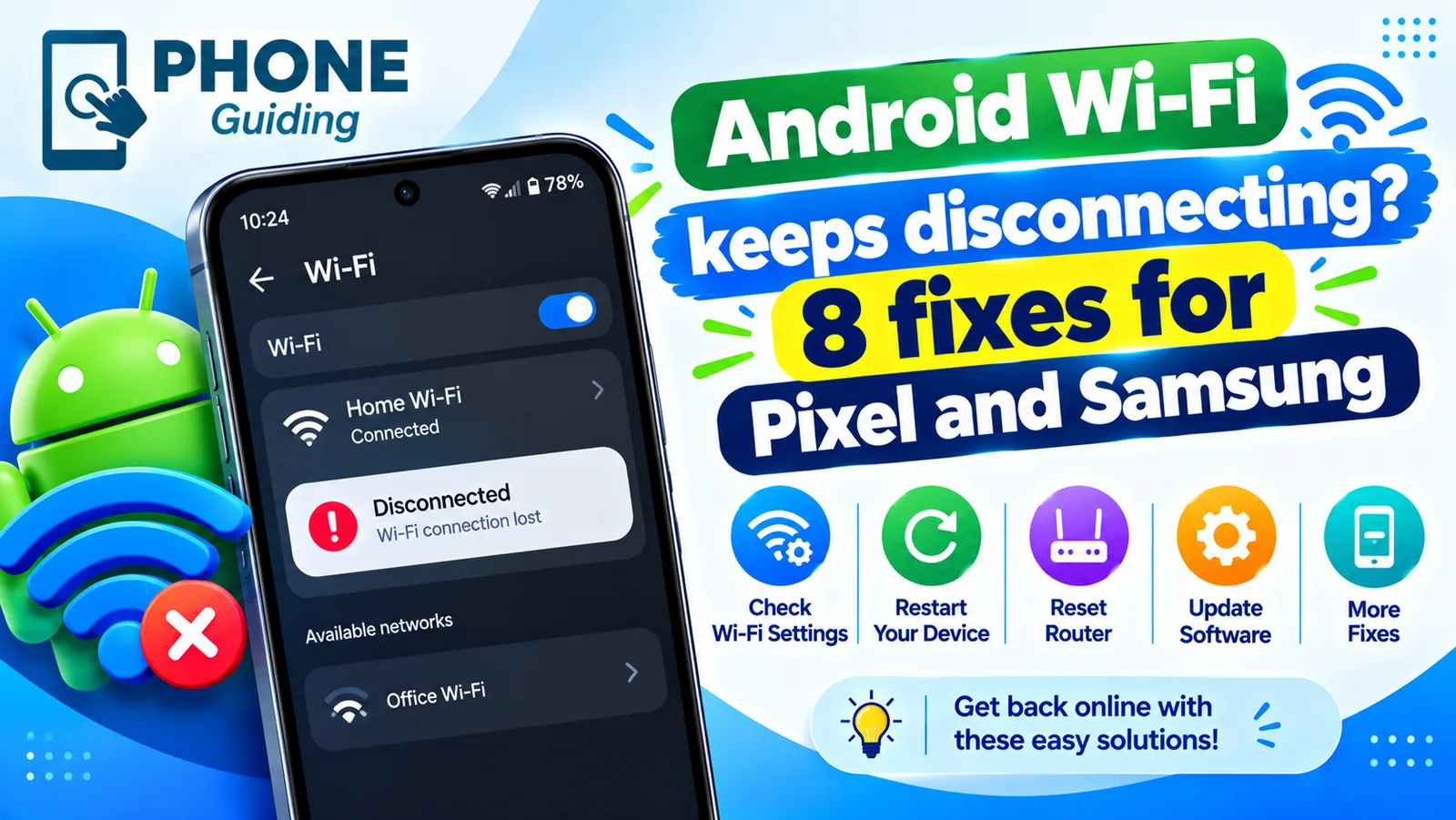
Android Wi-Fi disconnecting
Android Wi-Fi keeps disconnecting and reconnecting? Turn off randomized MAC, Adaptive connectivity and Switch to mobile data, and check the router in 8 steps.
iPhone not connecting to Wi-Fi
iPhone won't connect to Wi-Fi, or connects with no internet? Forget the network, renew the lease, restart the router and try 7 more fixes to get back online.
More guides you may need
Use a VPN on iPhone
How to use a VPN on iPhone in minutes: install an app, allow the VPN setting, turn it on and off, and learn when a VPN helps and when it does not.
Orange dot on iPhone
The orange dot on iPhone means an app is using your microphone; green means the camera. See which app it is, stop access and know when to worry.