

iPhone not connecting to Wi-Fi? 10 fixes (including no internet)
There are two different problems: the iPhone will not join the network, or it joins but nothing loads. These fixes cover both.
Photo by Praveen kumar Mathivanan on Unsplash
Wi-Fi problems on an iPhone come in two kinds, and the fix depends on which one you have. In the first, the iPhone will not join the network at all, or keeps asking for a password. In the second, it joins, the Wi-Fi bars look fine, but pages will not load. Work out which one you face, then go through the steps below in order. Most people are back online by the fourth or fifth fix.
How to fix an iPhone that won’t connect to Wi-Fi
The fix
10 fixes, quickest first
- 1
Turn Wi-Fi off and on.
Settings › Wi-Fi. Wait 10 seconds before turning it back on.
- 2
Check the router works.
Try another phone or laptop. If none can get online, restart the router.
- 3
Restart the router the right way.
Unplug it for 30 seconds, plug it back in, and wait a few minutes for the lights to settle.
- 4
Forget the network and rejoin.
Tap the ⓘ next to the network, tap Forget This Network, then join again with the password.
- 5
Look for a sign-in page.
Hotel, airport and coffee shop Wi-Fi need you to accept terms. Open Safari to trigger the page.
- 6
Renew the lease.
Tap the ⓘ next to the network, then Renew Lease.
- 7
Turn off Private Wi-Fi Address for this network.
In the network’s ⓘ screen, set Private Wi-Fi Address to Off. Some routers block changing addresses.
- 8
Turn off VPN and security apps.
Check Settings › VPN and any VPN app. Test with it off.
- 9
Update iOS.
Use cellular data if needed: Settings › General › Software Update.
- 10
Reset network settings.
Settings › General › Transfer or Reset iPhone › Reset › Reset Network Settings. You will re-enter Wi-Fi passwords.
Why is my iPhone not connecting to Wi-Fi?
The cause sits in one of three places: the iPhone, the router, or the internet line behind it. On the iPhone, a saved network that went stale, a VPN, Private Wi-Fi Address or an old iOS version can stop a connection. On the router, a crashed program, a full list of devices, a new password or a changed security mode can lock your phone out. Behind it, your internet provider may be down, and then every device joins the Wi-Fi but none reach the web. Testing the other devices first tells you which of the three to blame.
Is it the iPhone or the router?
Spend two minutes on this test and you save a lot of wasted steps.
- Other devices fail too: the router or the internet line is the problem. Restart the router and check your provider’s outage page.
- Only your iPhone fails: work through the phone fixes above.
- Your iPhone works on other Wi-Fi: the problem is the network settings or the router, not the phone hardware.
- Your iPhone fails on every network: reset network settings, update iOS, and consider the hardware.
Joined the network but no internet?
When the iPhone shows a Wi-Fi symbol but pages will not load, the connection exists but the data path is blocked. Look under the network name in Settings › Wi-Fi. A message such as No Internet Connection means the router joined but cannot reach the web. Try the steps in this order: open Safari to see whether a sign-in page appears, tap Renew Lease on the network’s info screen, restart the router, then turn off VPN. If the router has no internet for every device, call your provider. If only your iPhone has no internet, change the DNS: tap the ⓘ next to the network, choose Configure DNS, switch to Manual and add a public server such as 8.8.8.8 and 1.1.1.1.
When it says the password is wrong
Check the password on the router label, since people often confuse a zero with the letter O, or a capital I with a small L. Forget the network and enter it again, and use the eye icon to see what you typed. If the router recently changed its security mode, an old saved entry may fail, so forgetting the network clears it. A Security Recommendation notice under the network name means the router uses weak security. You can still join, but ask the owner to switch the router to WPA2 or WPA3. If you cannot recall the password, you can read about finding the Wi-Fi password.
Check the router settings
If the router is yours, a few settings can keep one phone out. Open the router’s app or admin page. Check that MAC filtering is not blocking your iPhone, that the device limit is not full, and that parental controls are not set on it. Update the router’s firmware, because new iPhones sometimes expose bugs in old routers. If your router combines 2.4 GHz and 5 GHz under one name, try giving each its own name and connect to the 2.4 GHz network, which reaches farther. Restarting the router once a month keeps it running well.
Public Wi-Fi and sign-in pages
Hotels, airports, stores and schools often use a sign-in page called a captive portal. The iPhone joins the network and shows a link, but data does not flow until you accept the terms. If the page does not pop up by itself, open Safari and go to a simple site such as apple.com, or type a plain address that starts with http. Turn off the VPN while you sign in, since it can block the page. Private Wi-Fi Address can also trip these networks, so turn it off for the one you are joining if it keeps failing.
Reset network settings the safe way
Resetting network settings clears every saved Wi-Fi network and password, Bluetooth pairing, VPN profile and cellular setting. It does not touch photos, apps or messages. It fixes a lot of stubborn cases, so it is worth doing before a repair visit. Write down any passwords you need, since you must enter them again. Go to Settings › General › Transfer or Reset iPhone › Reset › Reset Network Settings. The iPhone restarts, and you can join your Wi-Fi like new. If you rely on a hotspot in the meantime, see using a hotspot while you fix it.
Try another network to test the iPhone
To tell whether the iPhone is at fault, join a different network. A friend’s Wi-Fi, a library or your phone’s own hotspot will do. If the iPhone connects there, your home router is the problem. If it fails everywhere, the iPhone needs a deeper fix. This one test saves a lot of time, and it also tells a repair shop what to look for.
When it is a hardware or provider problem
If your iPhone fails on every Wi-Fi network after a reset and a clean iOS install, the Wi-Fi chip or antenna may be faulty. Signs include a greyed out Wi-Fi switch, very weak bars next to the router, and Bluetooth that fails as well. Drops and water damage are common causes. An Apple Store or an authorized repair shop can check it, and it is worth getting a quote before you pay. If instead the whole house is offline, call your internet provider, check the outage page, and ask them to test the line. Replacing an old router that is more than five years old can also fix a lot of weak or slow connections.
If it connects and then drops again, move on to Wi-Fi that keeps dropping. And if the Wi-Fi switch itself will not move, read about a Wi-Fi switch that is greyed out.
Frequently asked questions
Why does my iPhone say No Internet Connection on Wi-Fi?
The iPhone joined the router, but the router is not getting internet, or the network needs a sign-in page. Check another device, restart the router, and open Safari to see if a login page appears.
Why does Wi-Fi work on other devices but not my iPhone?
Usually a saved network setting, Private Wi-Fi Address, a VPN or an old iOS version. Forget the network, turn off VPN, and reset network settings if needed.
Will resetting network settings delete my photos or apps?
No. It clears saved Wi-Fi passwords, Bluetooth pairings, VPN settings and cellular settings. Your photos, apps and messages stay as they are.
Why does my iPhone say Incorrect Password when it is right?
The router may be using a security mode your iPhone dislikes, or the password has a typo from a similar character. Type it again, forget the network and check the password on the router label.
What to try next
Sources
Official pages these steps are based on. Menus can differ by software version.
People also ask
Why does my iPad say incorrect password when it is right?
The network may have changed its password or security type. Forget the network, restart the router, and join again, typing the password carefully.
Read the full guide: iPad not connecting to Wi-FiWhy does my iPhone Wi-Fi keep turning off by itself?
Check for a Shortcuts automation that turns Wi-Fi off, Airplane Mode turning on, and a weak signal that makes the iPhone drop the network. Then update iOS and reset network settings if it continues.
Read the full guide: iPhone Wi-Fi keeps disconnectingI changed my router password. Why won’t my iPhone connect?
It still has the old one saved. Tap the info button next to the network, choose Forget This Network, then join again with the new password.
Read the full guide: Change Wi-Fi password on iPhoneWhy does Wi-Fi drop only when the screen is off?
Battery saving turns Wi-Fi down while the phone sleeps. Turn off battery saver or Low Power Mode to test.
Read the full guide: Phone Wi-Fi keeps droppingRelated guides

iPad not connecting to Wi-Fi
iPad not connecting to Wi-Fi or showing no internet? Forget and rejoin the network, turn off Private Address and VPN, restart the router and try 5 more fixes.
iPhone Wi-Fi keeps disconnecting
iPhone Wi-Fi keeps disconnecting or going in and out? Turn off Private Wi-Fi Address, forget weak networks, restart the router and try 6 more fixes.
Change Wi-Fi password on iPhone
Change your home Wi-Fi password from your iPhone with the router app or admin page, update a saved Wi-Fi password, or change your Personal Hotspot password.
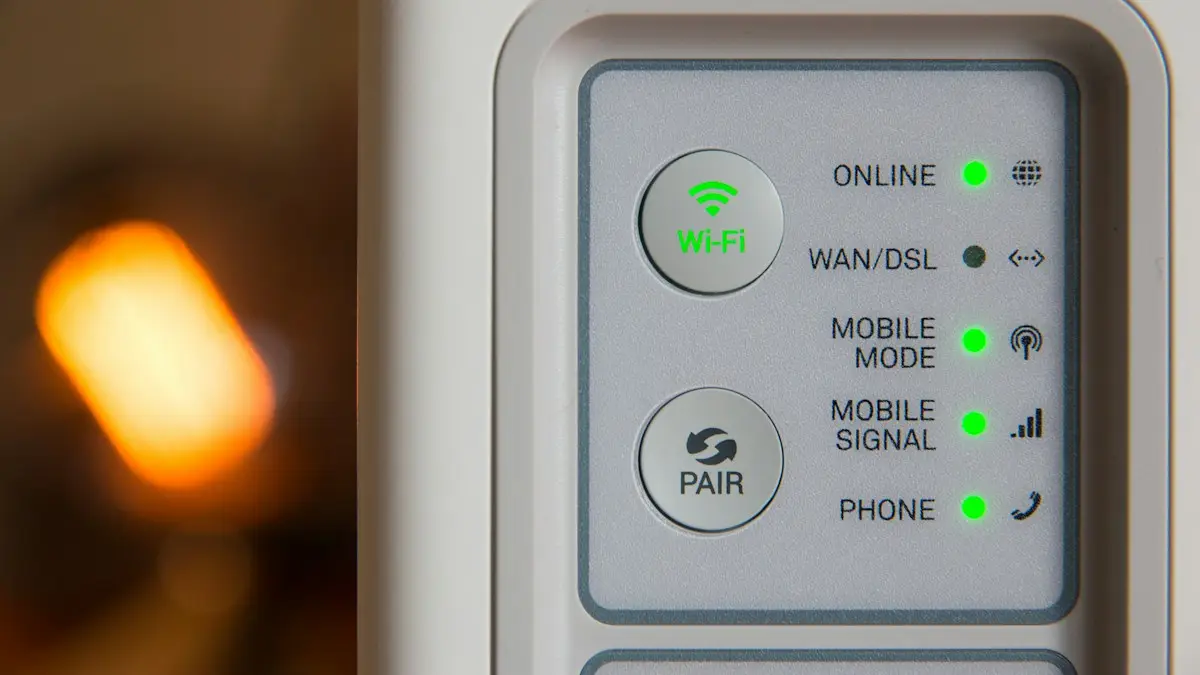
Phone Wi-Fi keeps dropping
Phone keeps disconnecting from Wi-Fi? Find out if it is the router or the phone, then restart, forget the network and turn off smart Wi-Fi switching.
More guides you may need
Storage stuck calculating
iPhone storage stuck on calculating or not loading? Wait it out, restart, free some space and update iOS, or check storage from a computer when Settings fails.
iPhone stuck in headphone mode
iPhone stuck in headphone mode with no sound from the speaker? Check Bluetooth, the audio output, the charging port and Silent mode. 8 fixes that work.