

How to change your iPhone password (passcode)
Your iPhone password is the passcode you type to unlock it. Changing it takes a minute, and iOS gives you a safety net if you forget the new one.
Most people who search for their iPhone password mean the passcode, the 4 or 6 digit code you type to unlock the phone. That is what this guide changes. If you meant a different password, the table below shows where each one lives.
Which iPhone password do you mean?
- Passcode: unlocks the iPhone and approves security changes. Changed in Settings › Face ID & Passcode, as below.
- Apple Account password: signs in to iCloud, the App Store and Find My. Changed in Settings › your name › Sign-In & Security › Change Password.
- Screen Time passcode: a separate 4 digit code that protects Screen Time limits, often set by a parent. Changed in Settings › Screen Time › Change Screen Time Passcode. Forgot it? See how to change a forgotten Screen Time passcode.
- SIM PIN: an optional code that locks your SIM card when the phone restarts. Changed in Settings › Cellular › SIM PIN. Your carrier gives you the default PIN; three wrong tries lock the SIM and you need a PUK code from the carrier.
How to change iPhone password step by step
The fix
Change your iPhone passcode
- 1
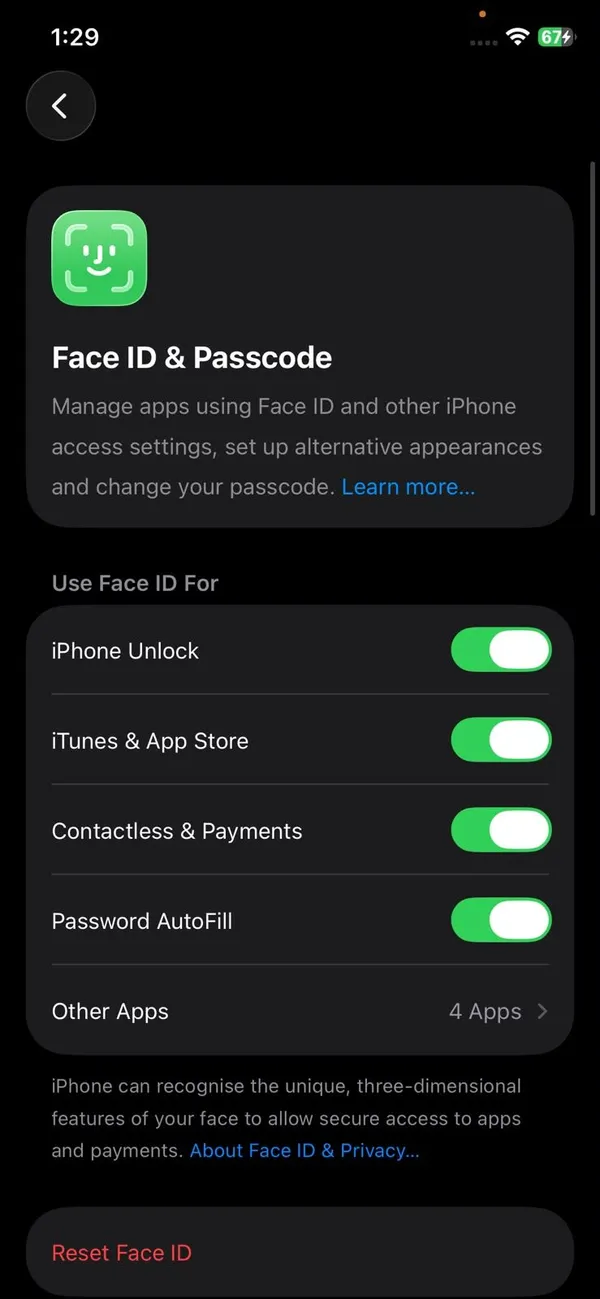
Open Settings and tap Face ID & Passcode.
On iPhone SE and iPhone 8 and earlier, it is Touch ID & Passcode.
- 2
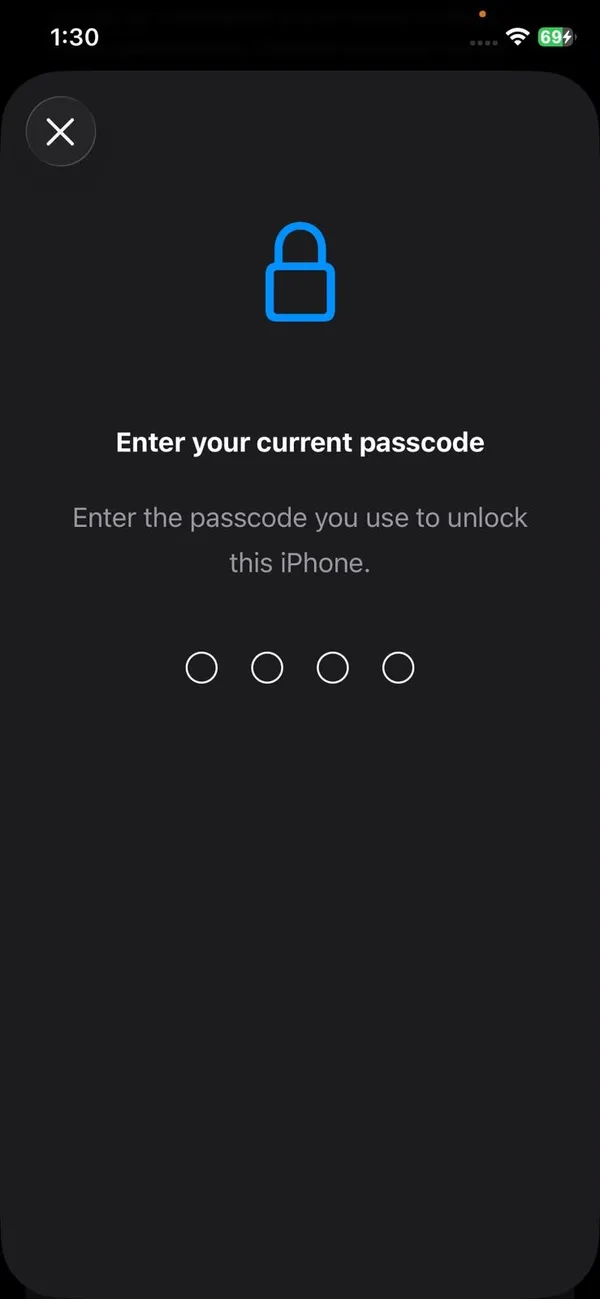
Enter your current passcode.
- 3
Scroll down and tap Change Passcode.
It is below the list of features Face ID is used for, next to Turn Passcode Off. If it is greyed out, see the section on restrictions below.
- 4
Enter your old passcode again.
iOS asks twice so that someone who picks up an unlocked phone cannot change the code. With Stolen Device Protection on and away from home, you confirm with Face ID instead.
- 5
Enter your new passcode.
Tap Passcode Options first if you want a Custom Alphanumeric Code (letters and numbers), a Custom Numeric Code, or a 4 digit code.
- 6
Enter the new passcode again to confirm.
The change is saved as soon as you confirm. Lock the phone and unlock it once or twice to make sure you remember the new code.
The new passcode works straight away. Face ID or Touch ID keeps working with it, and you do not need to set them up again. Use the new code from now on everywhere the iPhone asks for its passcode.
Which passcode type is best?
- Custom alphanumeric: most secure, uses letters and numbers.
- 6 digit: the default and a good balance for most people.
- 4 digit: quickest, but much easier to guess.
Why you may have to wait an hour
If Stolen Device Protection is on and you are away from a familiar place like home or work, changing the passcode starts a one hour Security Delay. You confirm with Face ID, wait an hour, then confirm again. This stops a thief who watched you type your passcode from locking you out. At home, the change happens straight away.
Tips for a strong passcode
- Avoid birthdays, anniversaries, 123456, 000000, repeated digits and patterns like 147258 that follow the keypad.
- Do not reuse your bank card PIN or your garage code.
- Use a 6 digit or longer code rather than 4 digits.
- Set Require Passcode to Immediately in Face ID & Passcode.
- Keep Erase Data off unless you back up often, since 10 wrong tries would wipe the phone.
What your passcode protects
The passcode does more than lock the screen. It encrypts the data stored on the iPhone, so without it nobody can read your photos or messages even with special tools. It is also needed to set up Apple Pay, to view saved passwords when Face ID fails, and to approve important security changes. That is why a longer passcode is worth the extra second it takes to type.
Too many wrong attempts
After a few wrong passcodes in a row, the iPhone makes you wait before the next try, starting with a minute and growing longer each time. After 10 wrong attempts, it shows iPhone Unavailable or Security Lockout. At that point the only way back in is to erase it with your Apple Account password, then restore from a backup. Our guide to resetting an iPhone without the passcode walks through it. If Erase Data is turned on, the iPhone erases itself after the 10th wrong try.
Change Passcode greyed out or missing?
On a work or school iPhone, a management profile can require a certain type of passcode or stop you turning it off. Check Settings › General › VPN & Device Management. If there is a profile, your IT team sets the rules. If Screen Time restricts Passcode Changes under Content & Privacy Restrictions, you will need the Screen Time passcode to change it.
Setting a passcode on a child’s iPhone
Let your child choose their own passcode so they can unlock the phone, and use a separate Screen Time passcode that only you know for the limits and restrictions. Write the child’s passcode down somewhere safe at home. If they forget it, the iPhone has to be erased, and Family Sharing cannot unlock it for you.
Should you change your passcode regularly?
Not on a schedule. A strong passcode that only you know is safe to keep for years. Change it when there is a reason: someone watched you type it, a friend or former partner knows it, you handed the phone in for repair and told the shop the code, or you used the same digits as your bank card PIN. After changing it for one of these reasons, tap Expire Previous Passcode Now so the old one stops working immediately.
Require Passcode and Auto-Lock
In Settings › Face ID & Passcode, Require Passcode is set to Immediately on iPhones with Face ID and Touch ID, and that is the safest choice. How quickly the screen locks is set separately in Settings › Display & Brightness › Auto-Lock. Thirty seconds to two minutes is a sensible range. Setting Auto-Lock to Never leaves your phone open if you put it down.
Changing the passcode on iPad or Apple Watch
The steps on iPad are the same: Settings › Face ID & Passcode or Touch ID & Passcode, then Change Passcode. Each device has its own passcode, so changing the iPhone’s does not change the iPad’s. On Apple Watch, open Settings › Passcode on the watch and tap Change Passcode, or use the Watch app on the iPhone under Passcode.
Turning the passcode off
You can tap Turn Passcode Off in Settings › Face ID & Passcode, but it is not a good idea. Without a passcode, anyone who picks up your iPhone can see your messages and photos, Apple Pay stops working, and saved passwords and cards in Wallet are removed from the phone. If you find typing it annoying, set up Face ID or Touch ID so you rarely need to enter it.
Forgot the new passcode? You have 72 hours
For 72 hours after a change, your iPhone lets you use the old passcode to reset the new one. On the lock screen, tap Forgot Passcode, then Enter Previous Passcode. If you changed it because someone else knew the old one, go to Settings › Face ID & Passcode and tap Expire Previous Passcode Now.
Frequently asked questions
What if I forget my new passcode?
For 72 hours after changing it, you can unlock with your old passcode on iOS 17 and later. Tap Forgot Passcode on the Lock Screen and choose Enter Previous Passcode.
Is my iPhone password the same as my Apple Account password?
No. The passcode unlocks your iPhone. Your Apple Account password is for iCloud, the App Store and signing in to Apple services. They are changed in different places.
How many wrong passcode attempts before the iPhone locks?
After several wrong tries, the iPhone makes you wait before trying again, and the wait grows each time. After 10 wrong attempts it shows iPhone Unavailable or Security Lockout, and you can erase it with your Apple Account password. With Erase Data on, it erases itself instead.
Why does it say Security Delay in Progress?
Stolen Device Protection is on and you are away from a familiar location. Wait the hour, or make the change at home.
Related guides
Cancel phone service
How to cancel phone service with Verizon, AT&T or T-Mobile: when not to cancel, what you still owe, one line on a family plan, and how to avoid surprise fees.
Check phone carrier compatibility
Check if your phone is compatible with a carrier using its free IMEI checker. Learn why phones fail: carrier lock, missing bands or no VoLTE, and what to do.