

How to change headphone settings on iPhone (wired and AirPods)
Headphone settings are spread across Accessibility, Sounds & Haptics and your AirPods menu. Here is where each one lives.
Photo by Abdul Artega on Unsplash
There is no single Headphones page in Settings, which is why this is so hard to find. Apple splits the options by purpose. Hearing and comfort settings sit in Accessibility, volume safety sits in Sounds & Haptics, and anything specific to AirPods or Beats appears on their own page only while they are connected. Wired and third-party Bluetooth headphones get the general settings but not the AirPods extras.
The map below shows where everything is. After that, each section walks through one area step by step, with what each option actually changes.
Where does each headphone setting live?
- Sound tuning: Settings › Accessibility › Audio & Visual › Headphone Accommodations.
- Left and right balance, mono: Settings › Accessibility › Audio & Visual.
- Volume limit: Settings › Sounds & Haptics › Headphone Safety.
- AirPods controls and noise modes: Settings › your AirPods, shown when connected.
- Spatial Audio: Control Center, touch and hold the volume slider.
The fix
Tune the sound with Headphone Accommodations
- 1
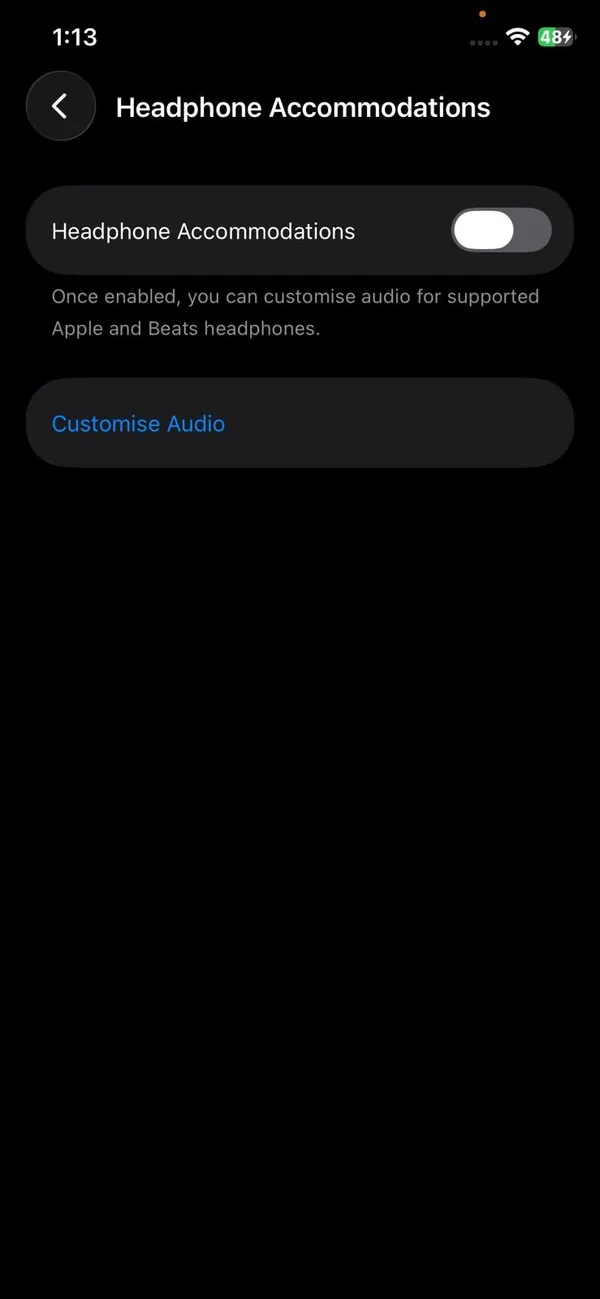
Open Settings › Accessibility › Audio & Visual › Headphone Accommodations.
- 2
Turn on Headphone Accommodations.
- 3
Pick a tuning.
Balanced Tone for overall clarity, Vocal Range for voices and podcasts, or Brightness for crisper high notes.
- 4
Choose Phone, Media or both, and try Custom Audio Setup for a quick hearing test.
The fix
Fix left and right balance
- 1
Open Settings › Accessibility › Audio & Visual.
- 2
Drag the Balance slider to the middle, or toward the side you need louder.
- 3
Turn on Mono Audio if you listen with one earbud, so you do not miss half the sound.
The fix
Limit how loud headphones get
- 1
Open Settings › Sounds & Haptics › Headphone Safety.
- 2
Turn on Reduce Loud Audio and choose a level, such as 85 decibels.
- 3
Leave Headphone Notifications on to be warned after a week of loud listening.
The fix
Change AirPods settings
- 1
Put your AirPods in your ears so they connect.
- 2
Open Settings and tap your AirPods near the top.
- 3
Change Press and Hold, Noise Control, Ear Tip Fit Test and Automatic Ear Detection.
- 4
For Spatial Audio, open Control Center, touch and hold the volume slider and choose Off, Fixed or Head Tracked.
How do you change the bass and treble with EQ?
The iPhone has no system-wide equalizer, which surprises a lot of people. Each music app handles its own sound. For Apple Music, go to Settings › Apps › Music › EQ and pick a preset such as Bass Booster, Vocal Booster or Late Night. Late Night evens out loud and quiet parts, which is handy for listening in bed or on a plane.
Spotify, YouTube Music and podcast apps have their own sound options, usually under playback settings inside the app. If you want a similar tweak everywhere, Headphone Accommodations (above) is the closest thing to a system-wide EQ, because it applies to phone calls and all media.
What hearing and awareness features do AirPods Pro have?
Recent AirPods Pro models add settings that go beyond basic controls. Open Settings and tap your AirPods near the top while they are connected. Depending on your model and iOS version, you may see:
- Conversation Awareness. Lowers your music and reduces background noise when you start talking to someone. Turn it off if the volume dips when you sing along.
- Personalized Volume. Adjusts media volume over time based on your surroundings and habits. Turn it off if the volume seems to change on its own.
- Adaptive Audio. A noise control mode that blends noise cancellation and Transparency depending on how loud it is around you.
- Hearing Health. Supported AirPods Pro can run a hearing test, act as a clinical-grade hearing aid for mild to moderate hearing loss, and reduce loud sounds around you. These features are not available on every model.
If you are not sure whether your AirPods have a feature, the settings page only shows the options your model supports. Keeping them updated helps, since new features arrive through firmware. AirPods update on their own while charging near your iPhone.
How loud are you really listening?
Your iPhone measures headphone volume in decibels. To see it live, add the Hearing control to Control Center: open Control Center, touch and hold an empty area, tap Add a Control and search for Hearing. While music plays, the control shows the current level and turns yellow when it is loud.
For the long view, open the Health app, tap Browse, then Hearing, and look at Headphone Audio Levels. It shows your weekly exposure, which is what the 7 day headphone notification is based on.
How do you tell your iPhone a Bluetooth device is headphones?
Headphone Safety and exposure tracking only work when the iPhone knows a Bluetooth device is headphones. Apple and Beats models are detected automatically. For other brands, go to Settings › Bluetooth, tap the info button next to the device, then tap Device Type and choose Headphone. You can rename the device on the same screen, which helps if you own several pairs with similar names.
If Bluetooth headphones keep cutting out, or refuse to pair, see our guide to iPhone Bluetooth problems. For AirPods that keep dropping, try our AirPods disconnecting guide.
Which headphone settings matter for phone calls?
Calls use a few settings of their own, and they are easy to miss because they live in different menus:
- Which AirPod uses its microphone. In your AirPods settings, tap Microphone and choose Automatically, Always Left or Always Right. Set one side if you only ever wear that AirPod for calls.
- Voice Isolation. During a call, open Control Center, tap the Mic Mode button and choose Voice Isolation. It filters out background noise so the other person hears you, not the traffic.
- Hear who is calling. Turn on Announce Calls in Siri or Phone settings (the location depends on your iOS version) so Siri reads out the caller's name in your headphones.
- Answer with a nod. Supported AirPods Pro and AirPods 4 let you nod to answer or shake your head to decline. Look for Head Gestures in your AirPods settings.
If people cannot hear you through your AirPods at all, the problem is usually the microphone rather than a setting. Our guide to AirPods not working on calls has the fixes.
What if the sound still seems wrong?
If you have changed several settings and cannot work out which one caused a problem, reset the headphone connection. Go to Settings › Bluetooth, tap the info button next to the headphones and tap Forget This Device. Then pair them again. For AirPods, our guide to resetting AirPods covers the full reset with the case button. Accessibility settings such as Balance and Mono Audio are stored on the iPhone, not the headphones, so check those separately in Audio & Visual. They stay the same no matter which headphones you connect.
Do wired headphones work on newer iPhones?
iPhone 7 and later have no headphone jack. iPhone 15 and later use USB-C, so you need USB-C earphones or a USB-C to 3.5 mm adapter. Older models with Lightning need Lightning earphones or Apple’s Lightning to 3.5 mm adapter. Cheap adapters without a proper chip often cause crackling or only one side working, so try Apple’s adapter first if the sound is odd.
Which setting causes common headphone problems?
- Volume suddenly drops: Reduce Loud Audio or the weekly exposure limit.
- Voices sound thin or muffled: try Headphone Accommodations with Vocal Range.
- Sound moves when you turn your head: Spatial Audio with head tracking is on. Choose Fixed or Off.
- Music pauses when you take one AirPod out: Automatic Ear Detection. Turn it off in your AirPods settings.
- Calls come through the phone speaker: Settings › Accessibility › Touch › Call Audio Routing, set to Automatic or Bluetooth Headset.
Frequently asked questions
Why does my iPhone keep turning my headphone volume down?
Reduce Loud Audio or the 7 day listening limit is lowering it. Open Settings › Sounds & Haptics › Headphone Safety and adjust or turn off Reduce Loud Audio.
Why do I only hear sound in one ear?
Check that Mono Audio and the balance slider in Settings › Accessibility › Audio & Visual are set the way you want, clean the earbuds, and test with another pair.
Do these settings work with wired headphones?
Balance, Mono Audio and Reduce Loud Audio work with any headphones. Headphone Accommodations and Spatial Audio need supported Apple or Beats models.
How do I change what squeezing my AirPods does?
Open Settings, tap your AirPods near the top, then choose Left and Right under Press and Hold AirPods.
People also ask
Why is only one AirPod connecting?
The other AirPod is usually flat or dirty. Put both in the case, check the charging contacts and the inside of the case are clean, charge for 30 minutes and try again. If it still fails, reset the AirPods.
Read the full guide: AirPods not connectingWhy is my iPhone screen dim even at full brightness?
Reduce White Point may be on, Low Power Mode may be active, or the phone may be hot. Check Settings › Accessibility › Display & Text Size, then Settings › Battery.
Read the full guide: iPhone display settingsWhy is my iPhone screen black and white?
Color Filters is probably set to Grayscale. Go to Settings › Accessibility › Display & Text Size › Color Filters and turn it off, or check the Accessibility Shortcut that may have switched it on.
Read the full guide: Change color on iPhoneWhy does YouTube ask “Video paused. Continue watching?”
YouTube pauses after a long time without interaction to save data. Tap Yes to continue. There is no setting to turn this off in the app.
Read the full guide: YouTube keeps pausingRelated guides
AirPods not connecting
AirPods not connecting to your iPhone or stuck on connecting? Charge the case, check Bluetooth, forget and re-pair, and reset your AirPods with these 8 fixes.
iPhone display settings
Find every iPhone display setting in one place: brightness, Auto-Lock, text size, color filters, wallpaper, app icons, rotation, Home button and iPhone name.

Change color on iPhone
How to change color on iPhone: use Color Filters, Night Shift, Dark Mode, tinted icons and Lock Screen colors. Also fix a black and white or yellow screen.
YouTube keeps pausing
YouTube keeps pausing by itself? Turn off Remind me to take a break, fix headphones that disconnect, check data saver and try 5 more fixes on your phone.
More guides you may need
Android to iPhone without Move to iOS
You can now move from Android to iPhone without the Move to iOS app if your phone runs Android 17 or later. Follow Apple's QR code steps, and the backup option.

Cancel phone service
How to cancel phone service with Verizon, AT&T or T-Mobile: when not to cancel, what you still owe, one line on a family plan, and how to avoid surprise fees.