

How to update your iPhone (and what to do if the update will not show)
Updating takes a few taps. If the update does not appear or will not install, the fix is usually space, compatibility or a beta profile.
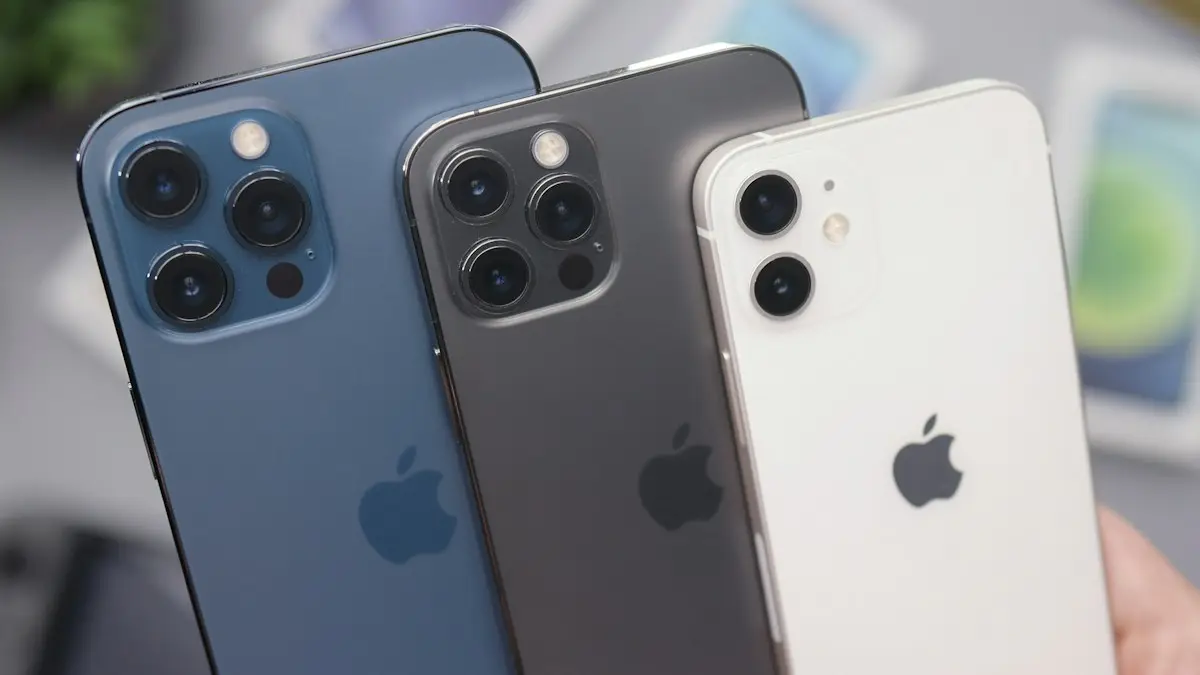
Photo by Daniel Romero on Unsplash
iOS updates fix security holes, squash bugs and add features, so keeping your iPhone current is one of the simplest ways to keep it safe and working well. Most updates take a few taps and a short wait while the phone restarts. The trouble starts when the update will not appear, will not fit, or you are not sure whether to install a big new version straight away. This guide covers all of that.
Check which iOS you have
Go to Settings › General › About and look at iOS Version. Then open Settings › General › Software Update: it shows whether you are up to date or lists the update waiting for you. Apple sometimes offers two choices there, the newest major version and a security update for your current version, so read the options before tapping.
How to update iPhone over Wi-Fi
The fix
Update over Wi-Fi
- 1
Back up your iPhone, especially before a major update.
- 2
Plug it into power and connect to Wi-Fi.
- 3
Go to Settings › General › Software Update.
- 4
Tap Update Now (or Download and Install) and enter your passcode.
- 5
Wait for the iPhone to restart. Do not unplug it during the install.
The iPhone needs at least 50% battery or to be plugged in to install. The download runs in the background, then the install restarts the phone and shows the Apple logo with a progress bar for 10 to 30 minutes. If the progress seems stuck, see what to do when an update is stuck on Verifying.
The fix
Turn on automatic updates
- 1
Go to Settings › General › Software Update › Automatic Updates.
- 2
Turn on iOS Updates and Security Responses.
The fix
Update not showing? Check these
- 1
Is your iPhone supported?
Settings › General › About shows your model. Very old models stop getting new iOS versions.
- 2
Free up storage.
Updates need several gigabytes free.
- 3
Remove a beta profile.
Settings › General › VPN & Device Management, or turn off Beta Updates in Software Update.
- 4
Wait and check again.
On release day, the update may not appear for a few hours.
- 5
Update with a computer.
Connect to a Mac (Finder) or PC (Apple Devices app) and click Check for Update.
How automatic updates work
With Automatic Updates on, your iPhone downloads updates on Wi-Fi and installs them overnight while it is charging and locked, after showing a notification. You wake up to an updated phone. Security Responses and system files are a separate switch in the same screen, and they deliver urgent security fixes, sometimes without a full restart. Keeping both on is the easiest way to stay protected without thinking about it.
Is your iPhone too old for the latest iOS?
Apple supports each iPhone with new iOS versions for many years, but not forever. If Software Update says you are up to date while friends have a newer version, your model may have reached the end of major updates. Apple’s website lists the models each iOS version supports. Older iPhones often keep receiving security updates for a while after major updates stop, but apps gradually require newer versions. If your iPhone is no longer supported, compare a battery replacement with an upgrade; see how much your iPhone is worth for trade-in values.
Stop the update reminder
If you want to hold off on a big update, turn off the automatic download and install switches in Settings › General › Software Update › Automatic Updates. If the update already downloaded, delete it from Settings › General › iPhone Storage, where it appears with the iOS version name. The reminder may still appear now and then, but nothing installs until you choose it. Do not put this off for months, though; security fixes really do matter.
Not enough storage for the update
Major updates need several gigabytes free to download and unpack. If space is short, Software Update may offer to remove some apps temporarily and reinstall them after the update, keeping their data. You can accept that, or free space yourself by deleting old videos, message attachments and apps you no longer use. Updating with a computer needs less free space on the iPhone, because the computer does the download. See clearing iPhone storage.
Update over cellular data
On 5G iPhones, Software Update can download over cellular when you have no Wi-Fi, depending on your carrier. A major update can be several gigabytes, so only do this on an unlimited plan or a hotspot you trust. To allow it, check Settings › Cellular › Cellular Data Options for an option to allow more data on 5G.
“Unable to Check for Update” or “Unable to Install Update”
- Check your internet connection and try a different Wi-Fi network if you can.
- Look at apple.com/support/systemstatus; on release day, Apple’s servers may be overloaded.
- Delete the downloaded update in Settings › General › iPhone Storage (it appears as the iOS version), then download again.
- Restart the iPhone, or update with a computer if it keeps failing after that.
Before a major update: quick checklist
- Back up to iCloud or a computer, and check the backup finished. See iPhone backup steps.
- Make sure you know your Apple Account password and your iPhone passcode; you may be asked for both.
- Free up several gigabytes of storage.
- Charge to at least 50% and stay on reliable Wi-Fi.
- Pick a time when you will not need the phone for about an hour.
Most updates go smoothly without any of this. But the one time an update fails partway, a recent backup is the difference between a minor annoyance and lost photos.
Update now or wait?
Install security updates and small x.x.1 updates as soon as you can; they often fix vulnerabilities that are already being exploited. For a big new version, such as the yearly release in September, waiting a week or two lets early bugs get fixed and lets your important apps catch up. If you rely on an app for work, banking or health, check its developer has confirmed support first.
Beta versions
Apple offers public betas of upcoming iOS versions through Settings › General › Software Update › Beta Updates. They let you try new features early, but they are unfinished, can drain battery and break apps, and are best kept off a phone you depend on. If you joined a beta and want to leave, set Beta Updates to Off; you will move to the next public release when it arrives. Going back immediately needs a computer restore, which erases the iPhone, so back up first.
Also update your apps regularly. App updates often contain the fixes that make them work properly on the newest iOS, and the App Store can do it for you if App Updates is on in Settings › Apps › App Store.
Update with a computer
- 1
Connect the iPhone to a Mac or Windows PC with a cable and unlock it.
- 2
Open Finder on a Mac, or the Apple Devices app on Windows (iTunes on older PCs).
- 3
Select the iPhone and click Check for Update.
- 4
Click Download and Update, and keep the cable connected until it finishes.
After the update
- Expect the iPhone to feel warm and drain faster for a day or two while it re-indexes in the background.
- Update your apps in the App Store, since many release fixes for the new iOS.
- Update your Apple Watch in the Watch app, if you have one.
- If something stopped working, see how to fix problems after an iOS update.
Going back to an older iOS version is only possible for a short time after a release, while Apple still signs the old version, and it requires restoring with a computer, which erases the iPhone. In practice, waiting for the next bug-fix update is almost always the better choice.
Frequently asked questions
How long does an iPhone update take?
Small updates take 10 to 20 minutes. Major updates can take 30 minutes to an hour, longer on release day when Apple’s servers are busy.
Will updating my iPhone delete anything?
No. Updates keep your photos, apps and settings. It is still smart to back up before a major update in case something goes wrong.
Can I update my iPhone without Wi-Fi?
Yes, on 5G iPhones. Software Update offers to download over cellular data on supported models and carriers. On older iPhones, use Wi-Fi or update with a computer.
Should I install a new iOS version on day one?
Security updates, yes, as soon as possible. For a big new version, many people wait a week or two for the first bug-fix update, especially if they rely on specific apps for work.
What to try next
Sources
Official pages these steps are based on. Menus can differ by software version.
People also ask
How long should Update Requested take?
Usually a few minutes. On the day a big iOS update comes out it can take an hour or more because many people download it at once. After a few hours with no change, treat it as stuck.
Read the full guide: iPhone stuck on Update RequestedHow long should Verifying Update take?
Usually 5 to 20 minutes. On release day, when millions of people update at once, it can take much longer. Wait at least 30 minutes on Wi-Fi and power before assuming it is stuck.
Read the full guide: iPhone stuck on Verifying UpdateWhy is my iPhone so slow and hot after the update?
After a big update, the iPhone re-indexes photos, search and apps in the background. This normally ends within 48 hours if you leave it charging on Wi-Fi overnight.
Read the full guide: iPhone problems after an updateWhy is no update available for my phone?
Your phone may already be up to date, the update may be rolling out slowly, or the maker has stopped supporting your model. Carriers can also delay updates by a few weeks.
Read the full guide: Update your Android phoneRelated guides
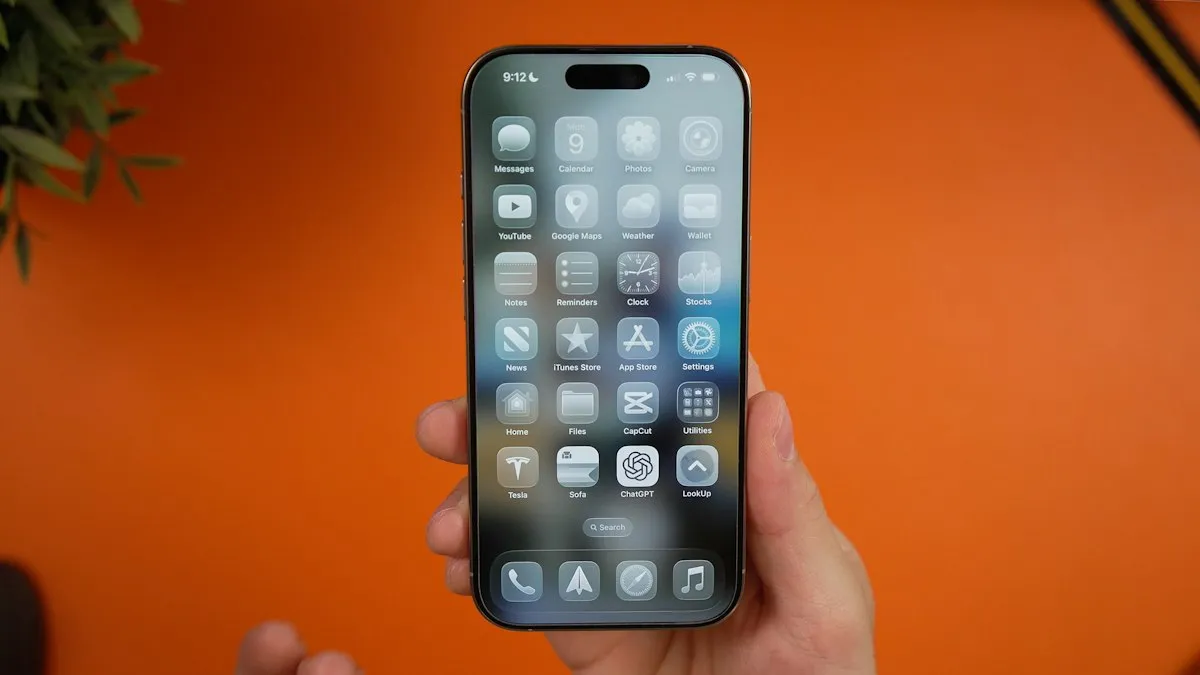
iPhone stuck on Update Requested
iPhone stuck on update requested and not downloading? Check Wi-Fi and storage, delete the update, reset network or update from a computer. 7 fixes.
iPhone stuck on Verifying Update
iPhone stuck on Verifying Update or Preparing Update? Learn how long to wait, then try 6 safe fixes that keep your data. Do not press Restore before reading.
iPhone problems after an update
iPhone slow, hot, draining battery or crashing after an iOS update? See what is normal for 48 hours, then try these 8 fixes for apps, Wi-Fi and a frozen screen.
Update your Android phone
Update your Android phone in Settings on Samsung, Pixel, Motorola and others, plus Google Play system updates, and what to do when no update shows up.
More guides you may need
Clear cache on iPhone
Clear cache on your iPhone to free space and fix slow apps. Clear Safari and Chrome data, offload apps and use in-app cache buttons, step by step.
Connect AirPods to iPhone
Connect AirPods to your iPhone in seconds with the setup card, or pair them manually in Bluetooth settings. Also how to connect AirPods to a new iPhone.