

iPhone not working after update? Fixes for every common problem
A lot of what looks broken after an update settles down within a day or two. Here is what to wait out and what to fix.
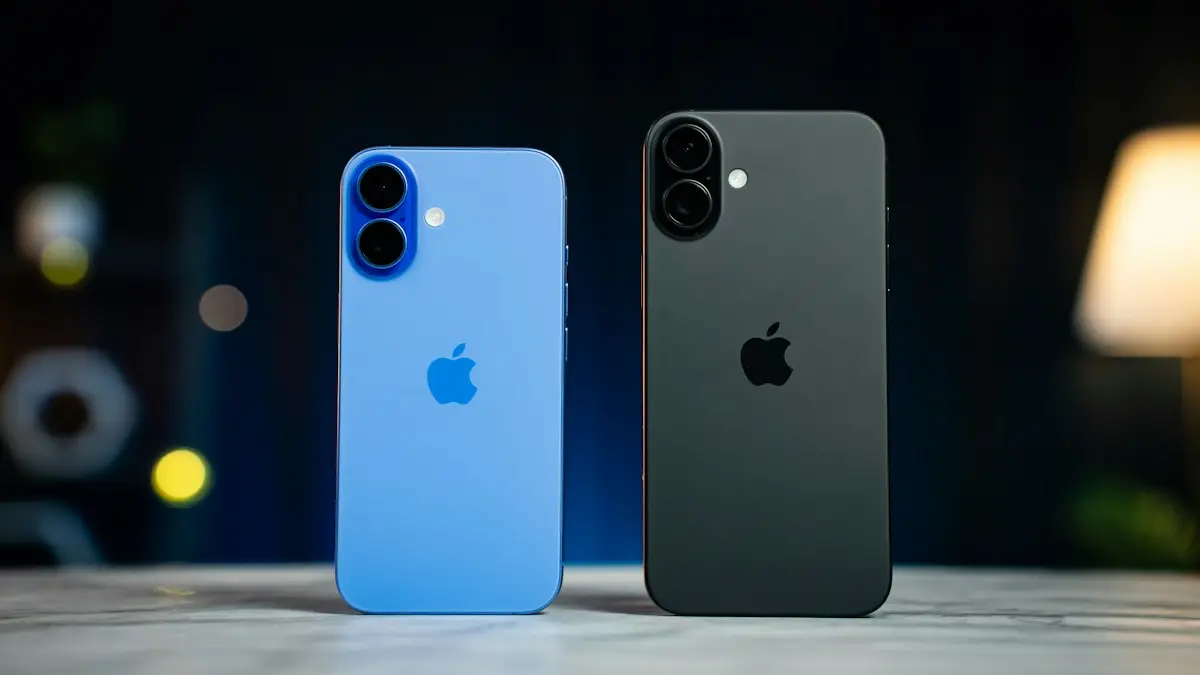
Photo by Amanz on Unsplash
What is normal for the first two days
- Faster battery drain and a warm phone while it re-indexes.
- Slight lag in Photos and search.
- Apps asking you to sign in again.
If your iPhone has been strange since the update, you are not alone, and it is rarely permanent. The days after a major iOS release always bring a predictable set of complaints: battery drain, heat, lag and a few apps that misbehave. Most settle by themselves within a couple of days, and Apple usually ships a bug fix within a few weeks for anything that does not. Knowing which is which saves you from drastic steps, like erasing the phone, that rarely help. To see which version is current and what each update fixed, check our iOS and Android updates tracker. Below are the general fixes, then specific steps for each common problem.
How to fix iPhone not working after update
The fix
8 fixes, in order
- 1
Leave it charging on Wi-Fi overnight.
- 2
Force restart.
Press Volume Up, then Volume Down, then hold the side button until the Apple logo appears.
- 3
Update all apps.
App Store › your picture › Update All. Old apps often crash on new iOS.
- 4
Check for a bug fix update.
Settings › General › Software Update. Apple often fixes early bugs within weeks.
- 5
Free up storage if it is nearly full.
- 6
Reset network settings for Wi-Fi, Bluetooth or cellular trouble.
Settings › General › Transfer or Reset iPhone › Reset › Reset Network Settings.
- 7
Reset all settings.
Same menu, Reset All Settings. Your data stays, but settings return to default.
- 8
Restore with a computer.
If it is stuck or will not start, put it in recovery mode and choose Update in Finder or iTunes first.
A realistic timeline
- Day 1 to 2: indexing, warmth and battery drain are normal. Charge overnight on Wi-Fi.
- Week 1: app developers release updates for the new iOS. Keep App Store updates on.
- Weeks 2 to 4: Apple usually releases the first bug-fix version, which fixes the most widespread problems.
- After a month: anything still wrong is worth a reset of settings or a call to Apple Support.
Face ID or Touch ID stopped working
After an update, iOS always asks for your passcode once before Face ID or Touch ID works again, which is normal. If Face ID keeps failing after that, restart the iPhone, clean the TrueDepth camera area at the top of the screen, and check Settings › Face ID & Passcode. As a last step, tap Reset Face ID and set it up again. If you see a message that Face ID is not available, see what to do when Face ID is not working.
Apple Watch acting up after the iPhone update
A new iOS often comes with a matching watchOS update. Open the Watch app on the iPhone, go to General › Software Update and install it, with the watch on its charger. Until both are updated, notifications, health sync and unlocking with the watch can be unreliable. Restart both devices after updating, then test again.
Fixes by problem
- Battery draining fast: wait two days, then check Settings › Battery for an app using far more than usual and update or remove it. See why an iPhone battery drains fast.
- Hot iPhone: normal during indexing. If it is still hot after two days while idle, look for a runaway app in Battery settings and restart.
- Slow or laggy: free some storage, restart, and give indexing time. If it is still slow after a week, see how to speed up a slow iPhone.
- One app crashing: update it; if no update exists yet, offload and reinstall it, or wait for the developer’s fix.
- Many apps crashing: restart, then check for a small iOS update, which often fixes these bugs.
- Wi-Fi or Bluetooth problems: forget the network or device and reconnect, then reset network settings if needed.
- No service or SOS: install the carrier settings update, toggle Airplane Mode and restart.
- CarPlay not connecting: forget the car in Settings › General › CarPlay, restart the iPhone and reconnect with a good cable.
- No sound or quiet calls: check the volume, Silent mode and Focus, which updates sometimes change.
- Keyboard lag: reset the keyboard dictionary in Settings › General › Transfer or Reset iPhone › Reset.
- Missing notifications: review Settings › Notifications and your Focus modes, since new options may be on by default.
Photos, messages or widgets look different
Big updates often redesign apps such as Photos, Messages and the Phone app, and some layouts are optional. Before assuming something is broken, look for a layout or view option in that app, for example the Phone app’s classic and unified layouts in iOS 26 and later. Photos may show items as still processing for a while after the update, and widgets can return to their default size; edit the Home Screen to set them back.
Stuck on the Apple logo or restarting
If the iPhone never finishes starting after the update, or restarts again and again, connect it to a computer, put it in recovery mode and choose Update first, which reinstalls iOS while keeping your data. Only choose Restore if Update fails, since it erases the phone. See how to fix an iPhone stuck on the Apple logo and why an iPhone keeps restarting.
Work, school and banking apps
Apps managed by an employer or school, and some banking and health apps, can take longer to support a new iOS, and a few refuse to open until they are updated. If a must-have app stops working, check the App Store for an update, look at the developer’s website or social accounts for a known issue, and use the website version in the meantime. For work phones, ask your IT team before updating next time; many organizations hold back major updates for a few weeks for this reason.
Should you reset or restore?
Reset All Settings keeps your data and fixes many lingering problems caused by settings that did not carry over cleanly, so it is worth trying before anything bigger. Erasing the iPhone and restoring a backup is rarely needed for update problems and can bring the same issue back, since the backup includes your settings. Only erase if Apple Support recommends it, and make a fresh backup first. See making an iPhone backup.
Is it the update or the hardware?
Sometimes a problem appears around the time of an update by coincidence. A worn battery is the most common example: a new iOS asks a little more of it, and an old battery that was barely coping starts shutting down. Check Settings › Battery › Battery Health & Charging to see where your battery stands. If Maximum Capacity is low or there is a service message, a battery replacement, not a software fix, is the answer. Problems that started after a drop or water exposure are hardware too.
Avoid the same trouble next time
- Back up right before every major update, every time, so a bad install never costs you data.
- Keep a few gigabytes of storage free; a nearly full iPhone is more likely to have problems after updating.
- For big yearly releases, waiting a week or two for the first fix is reasonable if your phone works well today.
- Keep apps updating automatically, so they are ready when the new iOS version arrives.
Tell Apple about the bug
If you have found a real bug, report it. Contact Apple Support through the Apple Support app or getsupport.apple.com and describe exactly what happens, when, and on which iPhone model. Bugs that many people report are usually the ones fixed first in the next update, so your report genuinely helps. Meanwhile, check apple.com/support/systemstatus if the problem involves iCloud, iMessage or the App Store, since those can be server-side issues rather than your phone.
Frequently asked questions
Why is my iPhone so slow and hot after the update?
After a big update, the iPhone re-indexes photos, search and apps in the background. This normally ends within 48 hours if you leave it charging on Wi-Fi overnight.
Can I go back to the old iOS version?
Usually not. Apple stops signing older versions a week or two after a release. Waiting for the next bug fix update is the practical option.
Why did my settings change after the update?
Major updates sometimes turn on new features or reset certain options to default. Go through Notifications, Focus, Sounds and Privacy settings, and switch off anything new you do not want.
My iPhone has no service after updating. What should I do?
Restart it, then check Settings › General › About for a carrier settings update. Toggle Airplane Mode, and if that fails, reset network settings and contact your carrier.
What to try next
Sources
Official pages these steps are based on. Menus can differ by software version.
People also ask
How long should Update Requested take?
Usually a few minutes. On the day a big iOS update comes out it can take an hour or more because many people download it at once. After a few hours with no change, treat it as stuck.
Read the full guide: iPhone stuck on Update RequestedHow long should Verifying Update take?
Usually 5 to 20 minutes. On release day, when millions of people update at once, it can take much longer. Wait at least 30 minutes on Wi-Fi and power before assuming it is stuck.
Read the full guide: iPhone stuck on Verifying UpdateHow long does an iPhone update take?
Small updates take 10 to 20 minutes. Major updates can take 30 minutes to an hour, longer on release day when Apple’s servers are busy.
Read the full guide: Update your iPhoneWhy is my iPhone flashlight greyed out?
The flashlight greys out when the Camera app or another app is using the flash, or when the iPhone is too hot. Close the camera, let the phone cool down and try again.
Read the full guide: iPhone flashlight not workingRelated guides
iPhone stuck on Update Requested
iPhone stuck on update requested and not downloading? Check Wi-Fi and storage, delete the update, reset network or update from a computer. 7 fixes.
iPhone stuck on Verifying Update
iPhone stuck on Verifying Update or Preparing Update? Learn how long to wait, then try 6 safe fixes that keep your data. Do not press Restore before reading.
Update your iPhone
Update your iPhone to the latest iOS over Wi-Fi or with a computer, turn on automatic updates, and fix an update that is not showing or will not install.

iPhone flashlight not working
Fix an iPhone flashlight that will not turn on, is greyed out, missing from Control Center or too dim. Step by step, and how to tell a bug from a failed LED.
More guides you may need
Use a VPN on iPhone
How to use a VPN on iPhone in minutes: install an app, allow the VPN setting, turn it on and off, and learn when a VPN helps and when it does not.
Erase All Content and Settings fails
Erase All Content and Settings not working? Fix Find My and Apple Account blocks, eSIM prompts and stuck erases, or erase from a computer or iOS Recovery.