iPhone WiFi Keeps Disconnecting? Here’s How to Fix It
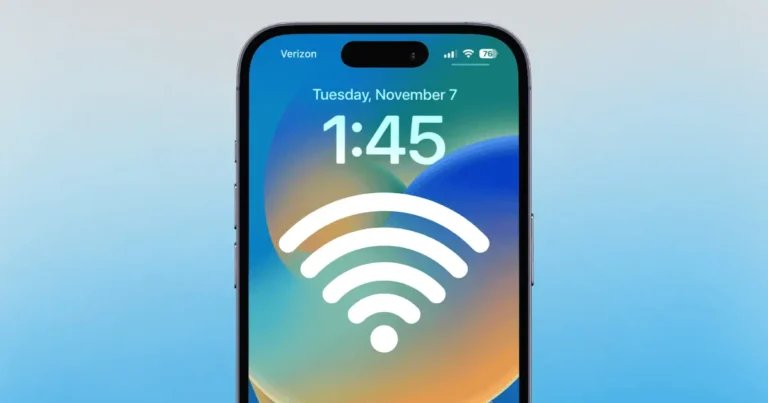
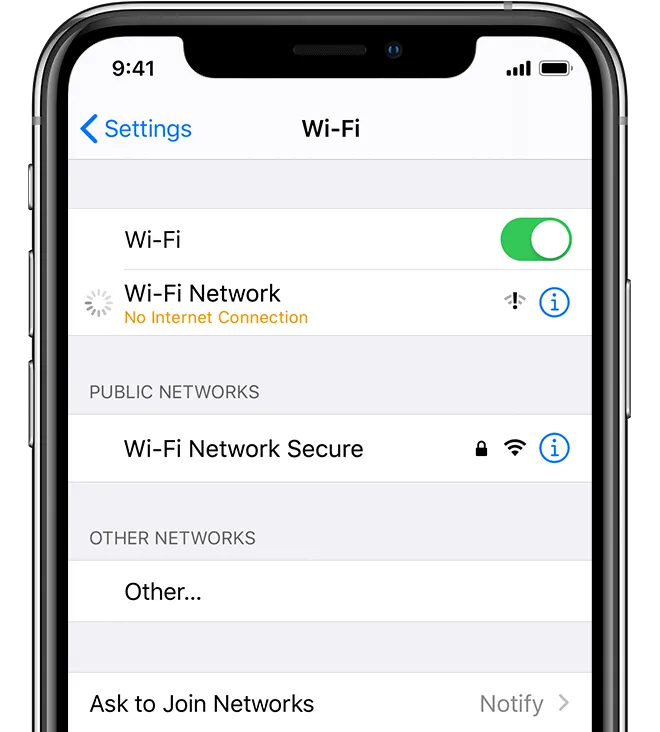
If your iPhone’s WiFi keeps disconnecting, it’s usually caused by iOS bugs, a weak signal, incorrect network settings, or background interference. You can fix it by resetting network settings, updating iOS, forgetting and reconnecting to WiFi, and disabling WiFi Assist.
Why Does My iPhone Keep Disconnecting from WiFi?
Here are the most common reasons:
- Weak or unstable WiFi signal
- iOS 18 or iOS 19 bugs
- Incorrect network settings
- Router issues
- VPN interference
- WiFi Assist switching networks
- Background apps using the network
12 Proven Fixes for iPhone WiFi Disconnecting
1. Turn WiFi Off and On
Go to: Settings → WiFi → Toggle OFF → ON
Simple but often fixes temporary glitches
2. Restart Your iPhone
- Press and hold the Power button
- Slide to power off
- Turn it back on
Clears system bugs
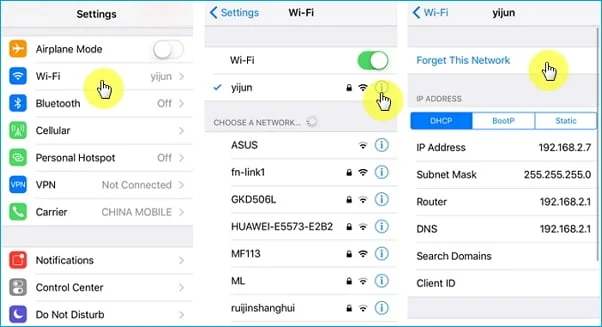
3. Forget and Reconnect to WiFi (IMPORTANT)
Go to: Settings → WiFi → Tap (i) → Forget This Network
Reconnect by entering the password
4. Reset Network Settings (MOST EFFECTIVE)
Go to: Settings → General → Transfer or Reset → Reset → Network Settings
This will remove saved WiFi passwords
5. Update iOS (Critical Fix)
Go to: Settings → General → Software Update
Many WiFi issues are fixed in updates
6. Disable WiFi Assist
Go to: Settings → Cellular → WiFi Assist → OFF
Prevents automatic switching to mobile data
7. Turn Off VPN
If you use VPN:
Disable it temporarily
VPNs often cause connection drops
8. Check Router Settings
- Restart router
- Move closer to the router
- Avoid interference (walls, devices)
9. Disable Low Data Mode
Go to: Settings → WiFi → Tap network → Low Data Mode → OFF
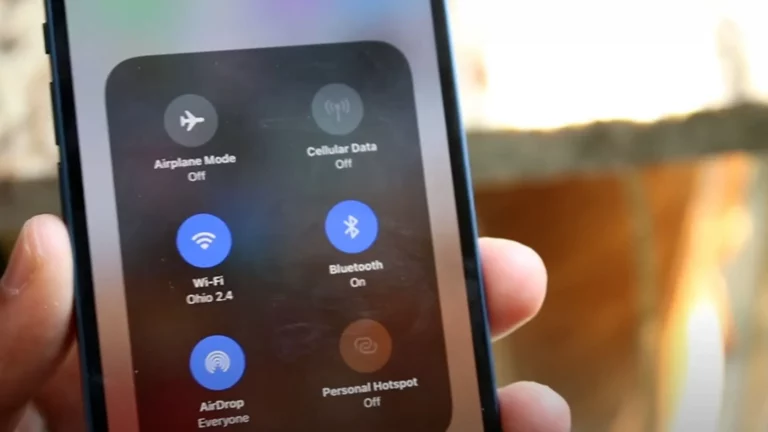
10. Turn Off Bluetooth Temporarily
Bluetooth can interfere with WiFi signals
11. All Settings (Advanced Fix)
Go to: Settings → General → Transfer or Reset → Reset All Settings
Keeps your data safe
12. Check for Hardware Issues
If nothing works:
- Visit Apple support
- Possible antenna issue
Quick Fix Checklist
| Problem | Fix |
|---|---|
| Weak signal | Move closer to router |
| iOS bug | Update iOS |
| Wrong settings | Reset network settings |
| VPN issue | Disable VPN |
| Auto switching | Turn off WiFi Assist |
iPhone WiFi Disconnecting After iOS Update?
Try this:
- Wait 24 hours (system optimization)
- Restart iPhone
- Reset network settings
- Update apps
This is very common after updates
FAQs:
Why does my iPhone’s WiFi keep turning off automatically?
This usually happens due to WiFi Assist, iOS bugs, or network instability. Turning off WiFi Assist and resetting network settings can fix it.
How do I keep my WiFi stable on iPhone?
Stay within range, disable unnecessary features like VPN and Bluetooth, and keep your iPhone updated.
Is WiFi dropping a hardware issue?
Not usually. Most cases are software-related, but if the issue persists, it could be a hardware problem.
Does iOS 18 cause WiFi problems?
Some users report WiFi issues after updates, but Apple usually fixes them in later updates.