How to Change Printing Size on iPhone?
Printing from your iPhone is relatively easy. Instead, it is very easy. But sometimes, it needs to be more prominent than how to change printer settings when printing while using the AirPrint option. All the printing information, how to transform and set paper size when printing photos from an iPhone, and if you want to change other printer settings. You will find them all here. Here are all the details on changing your iPhone’s print settings correctly.
Change Printing Size on iPhone
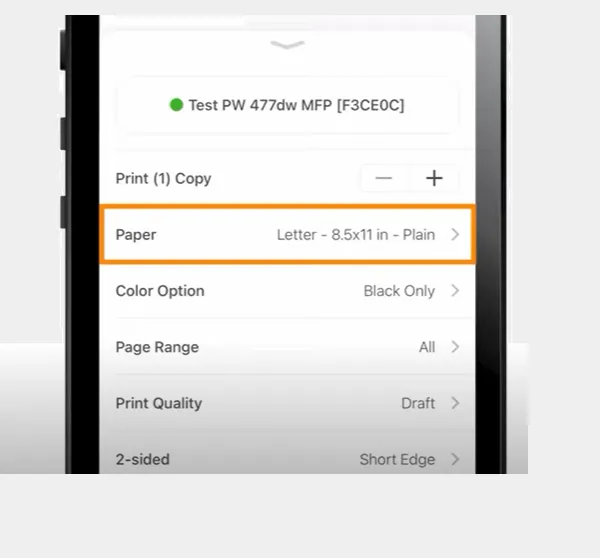
If you are an iPhone user, you know that the Air Print option allows users to send pictures from their iPhones to printers. The most crucial part is that it should be a printer with AirPrint capabilities. Although the options given by AirPrint are very few and basic, These options also depend on the type of printer you are using and how you connect with your iPhone.
The Process to Change Printing Size on iPhone
Users can change print settings if Air Print allows them to do so. It depends on the printer and its available printing options. Here are some details on how to change an iPhone’s printing size.
- First, you will have to open the app you are printing from.
- You can use the Photos app.
- Select the file or photo that you are willing to print.
- Now, click the option of the Share icon available at the bottom of the screen.
- You must scroll down until you find the print option and select Print.
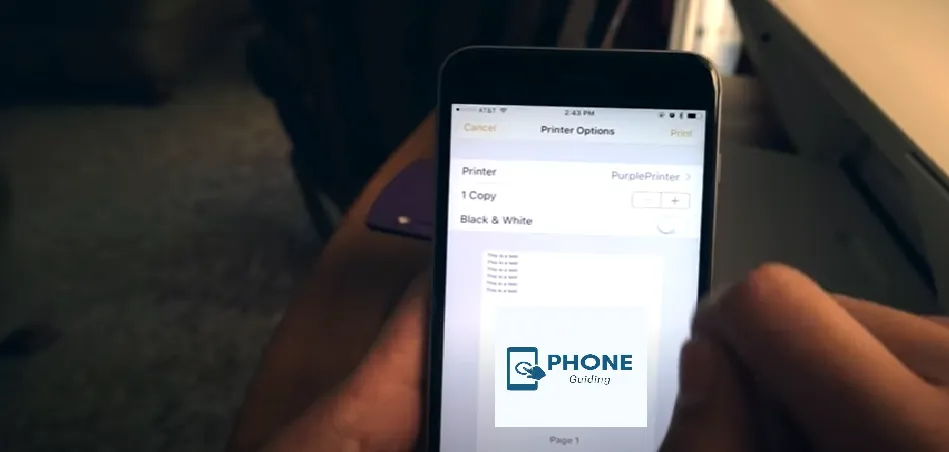
- Select Options to see what your available printing options are.
- The most common option will be changing the paper size and color, but your printer may allow more or fewer options. And it depends on which printer you are using.
- In the end, you also have to click on the option of “print.”
The Process to Change Photo Size on iPhone
Sometimes you need to adjust the print size on your iPhone when printing photos to get the size you want. When printing from your iPhone, you must crop the picture in the Photos app first to change the print size of an image. Then you have to follow the following steps precisely.
- First of all, you have to open the Photos app.
- Then you have to select the photo that you want to crop out.
- Now, Tap Edit. This option will be available at the top right corner of the screen.
- Then you must select the Crop icon in the screen’s lower right corner.
- Now select the Frame icon at the top of the screen.
- You can select from either portrait or landscape modes and various preset cropping ratios.
- Tap Done in the lower-right corner when cropping out the photo.
The Process of Using Printing Apps
Sometimes, you have to use an app to print photos, and here’s how it works.
- You have to use your iPhone as a scanner and send the photo you scanned to be directly printed.
- Create photo items such as calendars with the app templates.
- The app will have multiple options like adjusting page size, magnification, and print quality.
Print Photos on iPhone
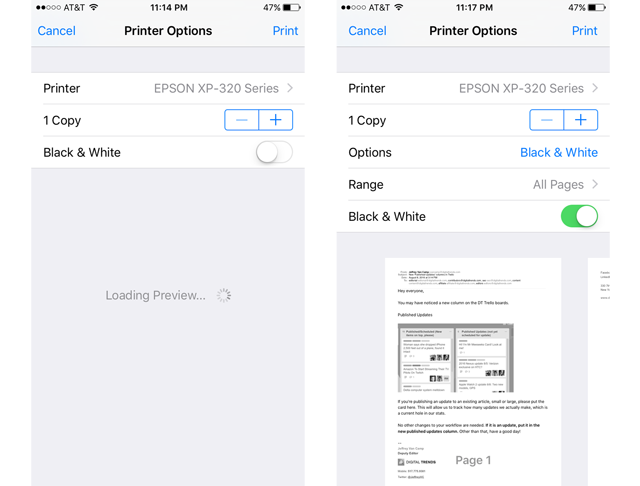
Here are a few aspects that you need to know.
- Make sure that you are using the Air print enabled printer
- To Print a single photo while viewing the picture, tap Print.
- If you want to Print multiple photos while viewing photos, you have to tap Select, select each image you want to print, then tap Print.
Portable Hand Printer
If you are traveling and don’t have enough space to keep a large printer, consider a portable or hand-held printer because they are best for occasions and traveling. Instax printers from Fujifilm are the best ones.
These printers allow you to print your photos wirelessly from your iPhone in under a minute. It makes your iPhone an old Polaroid camera that lets you print pictures from the printer. You can then have photos on the go and not even worry about publishing them.
Reasons to Print Photos
There could also be many reasons for you to print photos. But here are some of the reasons why people print photos.
- Some people are aesthetic freaks and like keeping a Polaroid journal of what they want to accomplish. For instance, it is a travel journal, and they keep pasting photos of their travel journey from time to time when they discover new places. It reminds them of what they have accomplished over time.
- Some people like to keep a collection of special moments of their lives with their significant other. For instance, the first time they met, their first date, and if they got married.
- Some people like to keep a collection of their friends as well.
- It depends on people’s preferences and choices and also varies. Whatever kind of photos people are keeping, they will keep them reminding about some special memories.
Wrapping It Up!
Printed photos are fun, especially if you make a collection for yourself. It is a relatively easy task to accomplish if you also want to change the printing size of your photo. You have to follow the process mentioned above very precisely and correctly. You can now also change the size of the photo on your iPhone. You can play around with pixels as well. This has always been easy. You have to follow the steps precisely. You can use a portable printer with an air print option or a regular printer for printing.
Frequently Asked Questions
Here are also some of the frequently asked questions.
Can I also change the print size from the older versions of iOS on iPhone or iPad?
Yes, these options are available in all the iOS versions except for a few early ones.
Can I print a document from my iPhone?
Yes, you can print a document from your iPhone through the same process without altering any step. The process will be the same as the one you will use to print a photo.
What should I do if my picture in print needs to be clarified?
You have to make sure that the pixels of the picture are suitable if you want to print a good-quality photo.
Why does my iPhone only print 4×6?
The issue is with your printer, not your iPhone. Your printer is set to print images; you must change it to print the documents. Do these changes using a built-in screen panel, or if your printer does not have one, you might need to download an app provided by your printer manufacturer.